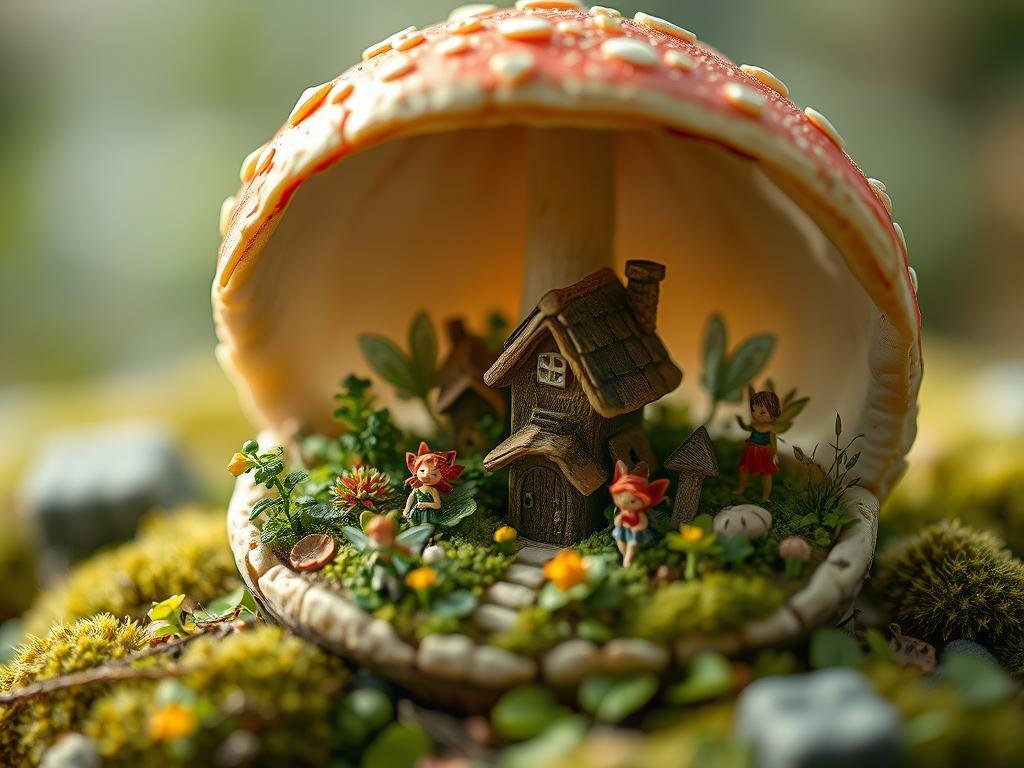
Getting Started with Gencraft for Free AI Images
The first step is finding the right tool that offers free options. We’ll use a website called Gencraft. It’s easy to access right from your web browser. Just open your favorite browser and search for “Gencraft”. Click on the main link you find.
Signing Up
Once you are on the Gencraft website, you’ll need to get started. Look for a button to generate or sign in. You can typically log in quickly using your Google (Gmail) account. Creating an account is free.
Gencraft has a premium option, but you don’t need it for basic use. They give you free credits daily, usually enough for about 10 image or video prompts. This is perfect for trying it out and creating several images each day without spending money.
Generating Your First Image
Now you are ready to create.
Entering Your Prompt: Find the area where you can type text. This is where you describe the image you want AI to create. Be specific! For example, you could type “a white unicorn jumping on the clouds, realistic and unique.” The more detail you give, the better the result can be.
Entering Your Prompt: Find the area where you can type text. This is where you describe the image you want AI to create. Be specific! For example, you could type “a white unicorn jumping on the clouds, realistic and unique.” The more detail you give, the better the result can be.
Choosing Image or Video: The site might allow you to create either an image or a video. Make sure the ‘Image’ option is selected if you want a static picture.
Choosing Image or Video: The site might allow you to create either an image or a video. Make sure the ‘Image’ option is selected if you want a static picture.
Selecting a Style: AI tools often have different artistic styles you can apply. Look for a style selection area. You can choose a style that fits your vision, perhaps something like ‘Cosmic’ or ‘Fantasy’. Pick the one you like best.
Selecting a Style: AI tools often have different artistic styles you can apply. Look for a style selection area. You can choose a style that fits your vision, perhaps something like ‘Cosmic’ or ‘Fantasy’. Pick the one you like best.
After you enter your prompt and select options, start the generation process. You will need to wait a little bit while the AI works. The website will show you the image it created based on your instructions.
Downloading Your Image
Once the image appears, you’ll see an option to download it. Save the picture to your computer or device.
Keep in mind that the free images generated this way usually come with a small watermark, often in a corner. If you need the image without the watermark, there’s another simple step.
Removing the Watermark (Optional but Helpful)
If the watermark bothers you, you can remove it using another free online tool.
Using Watermarkremover.ai
Find this tool by searching for “watermarkremover.ai” in your browser and clicking the main link.
On the Watermarkremover.ai website, you can upload your image. Either drag the image file onto the page or click to select it from your files. The site will process the image automatically.
After processing, the tool usually gives you options like ‘Remove Text’ and ‘Remove Logo’. Since image generators often add a logo-like watermark, choose ‘Remove Logo’. The tool will clean up the image.
Once that step is done, you can download the picture. This downloaded version should be free of the watermark.
Enhance Your Midjourney Workflow
While free tools are great for getting started, if you use Midjourney regularly and want to improve your process, consider automating tasks. Tools designed for Midjourney can save you time and effort. Explore how automation can help with generating variations, organizing your work, or running multiple prompts efficiently.
Discover tools that can make your Midjourney creative process smoother and more effective. Check out solutions like the
Conclusion
Generating AI images doesn’t have to be expensive. By using free tools like Gencraft, you can create unique pictures from your text prompts. You can even remove watermarks easily with sites like Watermarkremover.ai. Follow these simple steps to start making your own AI art today, all for free.
Want to generate more images or automate tasks in Midjourney? Try the
Do This Locally with Logen
Skip the subscription. Generate images like these on your own GPU — private, unlimited, no cloud dependency.
Midjourney vs Logen
| Feature | Midjourney | Logen |
|---|---|---|
| Cost | $10-60/mo | Free |
| Privacy | Cloud (images stored) | 100% local |
| Generations | Limited by plan | Unlimited |
| Internet Required | Always | No |
| Custom Models | No | Yes (any ComfyUI model) |
| GPU Required | No (cloud) | Yes (local) |
| Ease of Use | Discord bot | Desktop app |