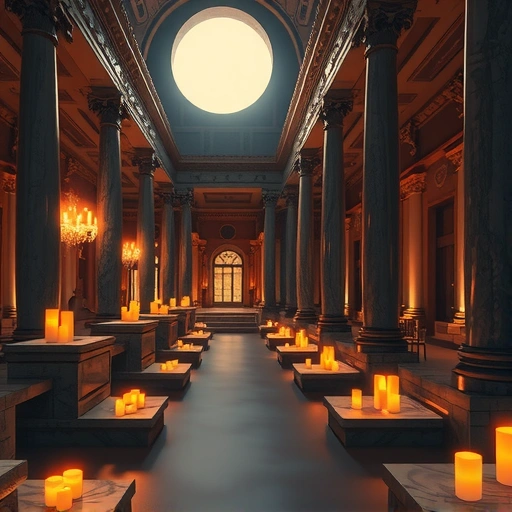
Midjourney is great for creating stunning visuals on its own. But when you add the power of ChatGPT to the mix, you can take your art to new levels. It’s a simple process that can lead to fantastic results. Let’s see how you can do this.
Get Art Ideas from ChatGPT
The first step is to get some ideas. You can ask ChatGPT for suggestions on what kind of images to create. For example, you could ask for “10 ideas for images of people in their national costumes.”
ChatGPT will provide a list of potential subjects. These ideas give you a great starting point for your creative project. You can even ask it to regenerate the list if you don’t love the first set of ideas.
Generate Midjourney Prompts with ChatGPT
Once you have an idea, you can use ChatGPT to help write the Midjourney prompt. Tell ChatGPT to “Generate a detailed prompt to generate AI art for [your chosen idea].”
ChatGPT will give you a detailed description that you can use. Sometimes, the prompt might start with a phrase like “create an AI generated digital illustration.” You can easily remove this part in Midjourney to give the AI more flexibility and expand the creative outcome beyond just digital art.
Put the Prompt into Midjourney
Copy the detailed prompt from ChatGPT. Then, go to Midjourney and paste it into the command bar. Remember, you can remove or change parts of the prompt before running it.
Add Your Own Parameters
After pasting the main prompt from ChatGPT, you can add your preferred Midjourney parameters. These tailor the image style and settings. Common parameters include:
Plane render
Plane render
Bright colors / Vibrant colors
Bright colors / Vibrant colors
Photo realistic
Photo realistic
High resolution (like 8K or 4K)
High resolution (like 8K or 4K)
Aspect ratio (like 16×9)
Aspect ratio (like 16×9)
Adding these helps guide Midjourney to create the specific look you want. Combine the AI-generated prompt with your custom settings.
Working between ChatGPT and Midjourney can involve a lot of copying, pasting, and managing prompts. To streamline this process and make creating art much faster, check out the
Generate and Review the Art
Run the prompt in Midjourney. While it’s working, you can go back to ChatGPT and start getting ideas and prompts for your next image. This lets you work on multiple ideas at once.
Midjourney will present you with variations of your image. Look at the results. You can then choose to:
Upscale a specific image to a higher resolution.
Upscale a specific image to a higher resolution.
Create variations of an image you like.
Create variations of an image you like.
This step allows you to refine the outcome based on the initial results.
Managing many Midjourney jobs and keeping track of prompts and parameters can be tricky. The
Conclusion
Combining ChatGPT and Midjourney is a powerful way to create incredible AI art. ChatGPT helps spark ideas and provides detailed prompt text, while Midjourney turns those ideas into stunning visuals. By using both tools and adding your own creative input with parameters, you can produce amazing images.
Ready to make your Midjourney workflow even smoother? Explore the
Do This Locally with Logen
Skip the subscription. Generate images like these on your own GPU — private, unlimited, no cloud dependency.
Midjourney vs Logen
| Feature | Midjourney | Logen |
|---|---|---|
| Cost | $10-60/mo | Free |
| Privacy | Cloud (images stored) | 100% local |
| Generations | Limited by plan | Unlimited |
| Internet Required | Always | No |
| Custom Models | No | Yes (any ComfyUI model) |
| GPU Required | No (cloud) | Yes (local) |
| Ease of Use | Discord bot | Desktop app |