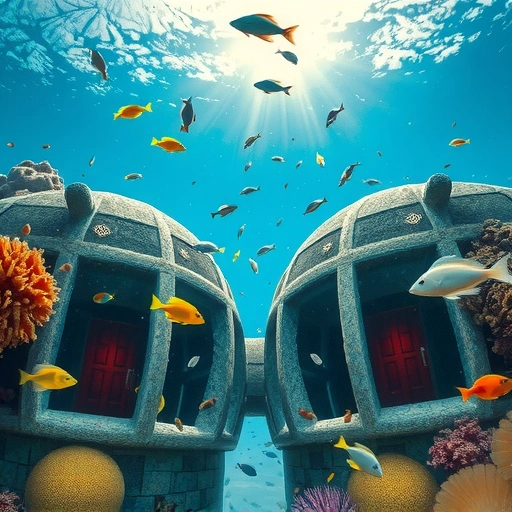
Getting Started with Midjourney
Midjourney is easily accessible through Discord, a popular platform for communities. If you don’t already have a Discord account, head over to discord.com to download and install the application. Once you’re set up on Discord, you can join the Midjourney server and start creating art.
Joining the Midjourney Server
To join the Midjourney server, simply go to discord.gg/midjourney. This link will take you directly to the server invite. Once you accept the invite, you’ll have access to the Midjourney community and the ability to generate AI art.
Generating Your First Image
Once you’re in the Midjourney Discord server, navigate to one of the “newbie” channels. These channels are designed for new users to experiment and create their first images. To start, type “/imagine” followed by a description of the image you want to generate. This description is known as a “prompt.titanxt.io/midjourneyautomator” rel=”noopener”>TitanXT.
Crafting Effective Prompts
The key to generating amazing AI art with Midjourney is writing effective prompts. A good prompt should include keywords that describe the subject, style, and details of the image you want to create. For example, you could try a prompt like “a dragon riding scenario.”
Optimizing Your Results with Version 4
[P]To get the best results, specify that you want to use version 4 of Midjourney by adding “–V 4” to your prompt. This will ensure that the AI uses the most advanced algorithms to generate your image. You can also specify the aspect ratio of the image by adding “–ar” followed by the desired ratio, such as “2:3,” “1:1,” or “3:2.” For example, a full prompt might look like this:</P]
/imagine a dragon riding scenario –V 4 –ar 2:3
Understanding the Results
[P]After submitting your prompt, Midjourney will generate four different versions of the image. Below each image, you’ll see several options:</P]
“U” stands for “upscale.” If you like one of the images, you can upscale it to a higher resolution by clicking the corresponding “U” button. For example, “U3” would upscale the third image.
“U” stands for “upscale.” If you like one of the images, you can upscale it to a higher resolution by clicking the corresponding “U” button. For example, “U3” would upscale the third image.
“V” stands for “variation.” If you like the overall style of one of the images but want to see more variations, click the corresponding “V” button. For example, “V2” would generate four more images similar to the second image.
“V” stands for “variation.” If you like the overall style of one of the images but want to see more variations, click the corresponding “V” button. For example, “V2” would generate four more images similar to the second image.
The arrow button reruns the prompt, generating a new set of four images.Visit TitanXT to learn more.
The arrow button reruns the prompt, generating a new set of four images.Visit TitanXT to learn more.
Free vs. Paid Plans
Midjourney offers a free trial that allows you to generate approximately 25 images. After that, you can subscribe to a paid plan, which starts at $10 per month for 100 images. Paid plans also allow you to generate images privately, as images created during the free trial are publicly visible.
Saving Your Images
To save a full-resolution version of your image, react to the message containing the image with the email emoji. The Midjourney bot will then send you the full-resolution image via direct message.
Conclusion
With Midjourney, creating stunning AI art is easier than ever. By following these simple steps, you can start generating incredible images in minutes. Experiment with different prompts, explore various styles, and unleash your creativity.titanxt.io/midjourneyautomator” rel=”noopener”>TitanXT.
Do This Locally with Logen
Skip the subscription. Generate images like these on your own GPU — private, unlimited, no cloud dependency.
Midjourney vs Logen
| Feature | Midjourney | Logen |
|---|---|---|
| Cost | $10-60/mo | Free |
| Privacy | Cloud (images stored) | 100% local |
| Generations | Limited by plan | Unlimited |
| Internet Required | Always | No |
| Custom Models | No | Yes (any ComfyUI model) |
| GPU Required | No (cloud) | Yes (local) |
| Ease of Use | Discord bot | Desktop app |