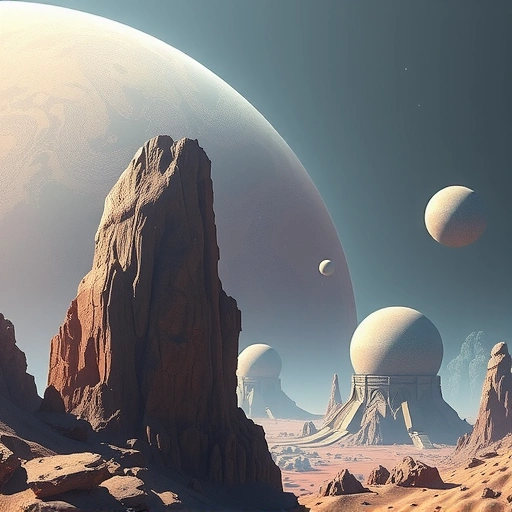
Focus on the Positive: Tell Midjourney What You Want
Instead of saying what you don’t want, focus on what you do want. For example, instead of “a farm with no dogs,” try “a farm with cows, pigs, and various animals.” This way, Midjourney focuses on the elements you want to see, instead of getting hung up on what’s missing. If you still need to remove something, use the “–no” parameter followed by what you want to exclude. For example, use “–no dogs” at the end of your prompt.</P]
Prioritize Your Words: Start Strong
Midjourney pays more attention to the beginning of your prompt. Put the most important words first to guide the AI. If you want a “massive evil bull on a nice farm,” make sure “massive evil bull” comes before “nice farm.” This tells Midjourney to focus on the bull first. Want to focus on the style? Put “minimalist logo” at the start to prioritize that aspect.</P]
Define Colors and Lighting: Set the Mood
Word Weight and Multi-Prompts: Fine-Tune Your Vision
Word Weighting
Use word weighting to emphasize certain elements. Add two colons after a word, followed by a number. A higher number gives that word more importance. For example, “bull::3 farm::1” makes the bull three times more important than the farm. Have fun experimenting with different weights to see how they change your image.
Multi-Prompts
Separate distinct ideas with two colons to create multi-prompts. For example, instead of “outside hot dog” (which creates a picture of the food item), use “outside hot:: dog” to get “outside hot” as one concept and “dog” as another, generating a picture of a dog in a hot, outdoor scene. This gives you more control over how Midjourney interprets your requests.
Expand Your Visual Vocabulary: Learn About Art and Photography
Keep Prompts Concise: Less is More
Try to keep your prompts short and to the point. Focus on the most important aspects of the image. Long prompts can distract Midjourney and lead to unwanted results. For example, instead of “Create an artwork of a small monkey in the stall of modern video game built on Unreal Engine,” try “Unreal Engine 3D render of a monkey, forest, sunny sky, high contrast, earthy tones.”</P]
Define Distinct Styles: Add Flair and Flavor
Specify a style to give your image a unique look. Try “watercolor painting,” “ink dripping drawing,” “DSLR photo,” or “anime 1990 film screen cap.” You can also reference materials like “ice sculpture” or artists like “Picasso” or “Salvador Dali.” These stylistic cues can dramatically change the final result.</P]
Seek Inspiration: Learn from Others
Look at other people’s prompts to get ideas and inspiration. Explore Midjourney’s explore page or online communities to see how others are creating amazing art. Pay attention to the words and phrases they use, and try incorporating them into your own prompts.</P]
Experiment with Permutations: Mix and Match
Take an existing prompt and break it into shorter phrases using permutations. Use curly brackets and commas to separate different styles or elements. This lets you see the impact of each phrase on the image. For example, “{antique photography, in the 1900s, dark fantasy}” will generate images with each of those styles applied individually. This helps you discover which phrases work best for you.
Control Perspective: Describe Angle and Framing
Specify the angle and framing of your image for more control over the final result. Use terms like “high angle,” “low angle,” “landscape shot,” “closeup shot,” or “side angle.” These descriptions help you guide Midjourney’s perspective and create more visually appealing compositions.</P]
Reroll and Remix: Refine Your Vision
Describe the Mood: Set the Emotional Tone
Use mood descriptors to influence the emotional tone of your image. Try words like “depressing,” “excited,” “gloomy,” “quiet,” “loud,” “powerful,” “serene,” or “vibrant.” These terms can significantly alter the look and feel of your artwork and evoke specific emotions in the viewer.
Use Prompt Formulas: Streamline Creation
Use solid prompt formulas to speed up your workflow and achieve better results. A simple formula is “art style of a [subject] in a [location/scene], [mood].” For example, “3D render of a gray alien in a spaceship, gloomy and spooky.” Then, switch out the bracketed items to experiment with different combinations. This structured approach helps you create consistent and high-quality images.</P]
By following these tips, you’ll be well on your way to mastering Midjourney and creating stunning AI art. Have fun experimenting and unleashing your creativity!
Do This Locally with Logen
Skip the subscription. Generate images like these on your own GPU — private, unlimited, no cloud dependency.
Midjourney vs Logen
| Feature | Midjourney | Logen |
|---|---|---|
| Cost | $10-60/mo | Free & Pro plans |
| Privacy | Cloud (images stored) | 100% local |
| Generations | Limited by plan | Unlimited |
| Internet Required | Always | No |
| Custom Models | No | Yes (any ComfyUI model) |
| GPU Required | No (cloud) | Yes (local) |
| Ease of Use | Discord bot | Desktop app |