Mastering the Art of Positive Prompting
When you’re telling Midjourney what to create, focus on what you DO want to see. Instead of saying what shouldn’t be there, list the things you want included. For example, instead of “a farm with no dogs,” try “a farm with cows, pigs, and chickens.” This helps Midjourney focus on the elements you desire, improving the final image.
The Power of Prioritization: Word Order Matters
Midjourney pays attention to the beginning of your prompts. Put the most important words first. If you want a big, scary bull on a farm, say “massive evil bull on a nice farm.” If the farm is more important, switch it to “a nice farm with a massive evil bull.” This simple change can totally change the focus of your image.
Fine-Tuning with Color and Light
Want even more control? Tell Midjourney about the colors and lighting you want. Use terms like “pastel colors,” “neon colors,” or specific colors like “blue and green.” For lighting, try “low contrast,” “high contrast,” “dark low lighting,” or “golden hour lighting.” This lets you adjust the mood and feel of your art.
Understanding Word Weight
- Use word weight to emphasize certain elements in your image. For example, `evil::8 bull::4 on a farm` will create an extremely evil bull!
- Use TitanXT’s Midjourney Automator to test out prompts and rapidly generate images!
Understanding Multi-Prompts
- Use multi-prompts to break your prompt into pieces. For example, instead of an outside hotdog, create “outside hot :: dog”
Expand Your Visual Vocabulary
Learning about art and photography can seriously boost your prompting skills. The more you know about visual styles, the better you can describe what you want to Midjourney. Take a class on Skillshare and discover new ways to communicate with AI.
Keep It Short and Sweet
Long prompts can confuse Midjourney. Focus on the most important details and cut out the rest. For example, instead of “create an artwork of a small monkey in the stall of modern video game built on Unreal Engine,” try “Unreal Engine 3D render of a monkey, forest, sunny sky, high contrast, earthy tones.” Shorter prompts are easier to tweak and give you more control.
Do you want to automatically shorten prompts to produce the best results? Check out TitanXT’s Midjourney Automator to discover this and other helpful features!
The Shorten Command
Use the `/shorten` command in Midjourney’s Discord server to remove unnecessary words from your prompts. This helps you focus on the most important elements and get better results.
Defining Styles and Using Artist Names
Describing a distinct art style will drastically improve your results. Using artist names can also guide Midjourney. Try “watercolor painting,” “DSLR photo,” or “anime 1990 film screen cap.” Or, use artists like “Picasso,” “Salvador Dali,” or “HR Giger” to get a specific look.
Inspiration from the Community
Look at other people’s prompts for inspiration! Check out the Midjourney explore page to see what others are creating. Find prompts you like and adapt them to your own ideas. Pay attention to how people are wording their prompts and what terms they’re using.
Experiment with Permutations
Take a prompt and break it into shorter phrases using permutations. For example, “{antique photography, in the 1900s, dark fantasy}” will generate images with each of those styles. This helps you see the impact of each phrase and find what works best for you.
Angle and Framing
Describe the angle and framing of your image. Use terms like “high angle,” “low angle,” “landscape shot,” or “closeup” to control the perspective and composition of your art.
Reroll and Remix: Iteration is Key
Don’t be afraid to reroll and remix your images. If you’re close to what you want, but not quite there, use the rerun button or remix mode to make small adjustments and try again. Keep iterating until you get the perfect result.
Describing the Mood
Use mood words like “depressing mood”, “excited”, “gloomy and spooky”, “quiet”, “loud”, “powerful energy”, “Serene Stillness” and “vibrant party energy” to influence the feel of your image.
Using Prompt Formulas
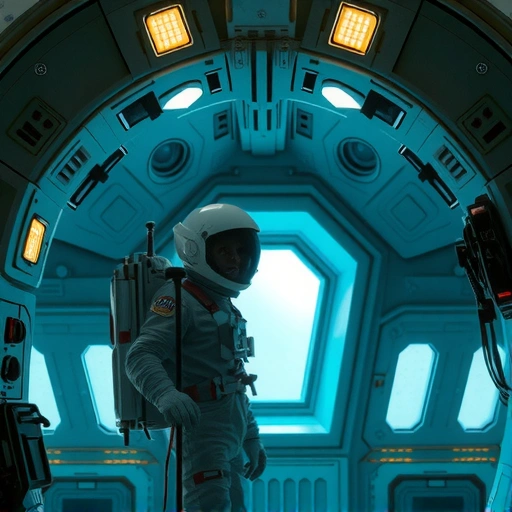
Try using solid prompt formulas. An example formula is: “art style of a subject in a locational scene, mood.” Then switch out these various sections for what you want to see in your image. Here’s an example: “a 3D render of a gray star alien in a spaceship gloomy and spooky”
Conclusion
Do This Locally with Logen
Skip the subscription. Generate images like these on your own GPU — private, unlimited, no cloud dependency.
Midjourney vs Logen
| Feature | Midjourney | Logen |
|---|---|---|
| Cost | $10-60/mo | Free & Pro plans |
| Privacy | Cloud (images stored) | 100% local |
| Generations | Limited by plan | Unlimited |
| Internet Required | Always | No |
| Custom Models | No | Yes (any ComfyUI model) |
| GPU Required | No (cloud) | Yes (local) |
| Ease of Use | Discord bot | Desktop app |