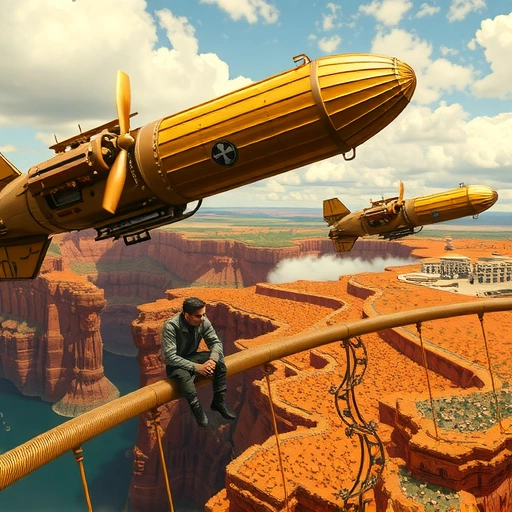
Understanding Midjourney Parameters
When you enter a text prompt, Midjourney uses default settings. Parameters allow you to override these defaults. They’re added to the end of your prompt, starting with two dashes followed by the parameter name (or abbreviation), a space, and the desired value. For example:
–ar 3:4
This sets the aspect ratio to 3:4. Multiple parameters can be used by separating each one with a space.
Key Midjourney Parameters
Version (–version or –v)
Aspect Ratio (–aspect or –ar)
Aspect ratio defines the width and height relationship of your image (width:height). The default is 1:1 (square). Use –ar followed by the desired ratio, like –ar 16:9 for a widescreen image. Keep in mind that there are limits to how wide or tall your images can be.
Chaos (–chaos or –c)
Chaos controls the diversity of the images in your grid. The default is 0, and the range goes up to 100. Higher values produce more varied results. Try –chaos 5 to add a bit of unpredictability to your creations. Sometimes, a little chaos is exactly what you need!
Stylize (–stylize or –s)
Every Midjourney model has a default aesthetic. Stylize adjusts the strength of this aesthetic. The default is 100, with a range from 0 to 1000. Higher values create more stylized images but might reduce prompt accuracy. Experiment with different stylize values to fine-tune the look of your art.
Style Reference (–style_reference or –sref)
This powerful feature lets you apply the style of reference images to your creations. Use image URLs, sref codes, or the word “random” after the parameter. For example: –sref https://example.com/image.jpg . Style Weight (–sw) then controls the strength of the style influence, with a default of 100 and a range of 0-1000. Unleash your creativity and explore new artistic horizons with this parameter.
Style (–style)
The style parameter helps minimize Midjourney’s default aesthetic influence, especially useful for photorealistic images. Use –style raw for a more raw, unedited look. This parameter gives you greater control over the final output, allowing you to achieve stunningly realistic results.
Quality (–quality or –q)
Speed: Turbo, Fast, and Relax
These parameters control image generation speed. Turbo and Fast use your fast GPU hours, while Relax doesn’t (but may not be available with all subscriptions). You can set your default speed in settings, but override it with parameters like –turbo. Speed is of the essence!
Repeat (–repeat or –r)
Repeat runs the same prompt multiple times. Use it with Fast or Turbo mode. For example, –repeat 5 runs the prompt five times. Generate multiple variations of your favorite prompts with ease.
No (–no)
The “no” parameter tells Midjourney what to exclude from your image. For instance, –no trees will remove trees. Use commas to exclude multiple items. This is a more effective way to exclude elements than simply using negative keywords in your prompt.
Tile (–tile)
Tile creates seamless repeating patterns. Simply add –tile to your prompt. Great for creating backgrounds and textures. Be sure to use version 6.1 or higher for upscaling tile results.
Seed (–seed)
Each Midjourney job starts with a unique “noise” pattern, linked to a seed number. By default, a random seed is assigned. Use –seed followed by a number to use a specific seed. This is useful for testing parameter changes while keeping the initial noise pattern consistent. For example, –seed 12345 will generate images based on the same initial pattern.
Weird (–weird or –w)
This parameter adds unexpected and strange elements to your images. The default is 0, with values up to 3000. Try –weird 100 to add a touch of the bizarre. Embrace the unexpected and explore the outer limits of Midjourney’s creativity.
Conclusion
Mastering Midjourney’s parameters opens up a world of creative possibilities. Experiment with these settings to fine-tune your art and bring your visions to life. Remember to check back for updates as Midjourney continues to evolve.
Do This Locally with Logen
Skip the subscription. Generate images like these on your own GPU — private, unlimited, no cloud dependency.
Midjourney vs Logen
| Feature | Midjourney | Logen |
|---|---|---|
| Cost | $10-60/mo | Free & Pro plans |
| Privacy | Cloud (images stored) | 100% local |
| Generations | Limited by plan | Unlimited |
| Internet Required | Always | No |
| Custom Models | No | Yes (any ComfyUI model) |
| GPU Required | No (cloud) | Yes (local) |
| Ease of Use | Discord bot | Desktop app |