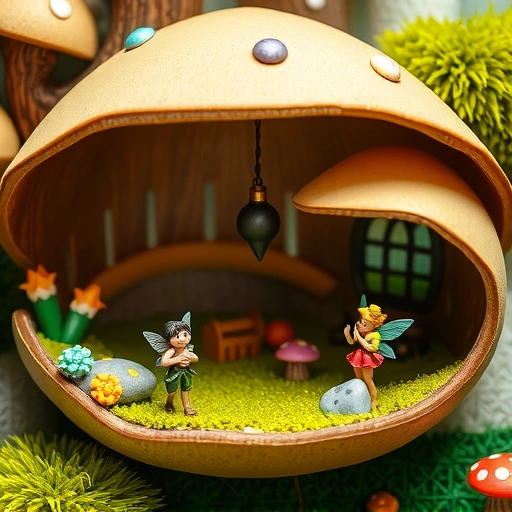
Getting Started: Prepare Your Images
Before you can use the `blend` command, you need to upload the pictures you want to use into Midjourney. You can do this by dragging and dropping them into your chat or using the standard upload method. Make sure the images appear as clickable links in the chat after uploading.
Method 1: The General Blend Approach
This method is good for a more fluid combination of multiple images. Midjourney will try to find common elements and styles across the pictures you provide.
Type `/blend` in the message box.
Type `/blend` in the message box.
Midjourney will prompt you to upload your first image. Select the first picture.
Midjourney will prompt you to upload your first image. Select the first picture.
It will then prompt you for a second image. Select the second picture.
It will then prompt you for a second image. Select the second picture.
A box will appear where you can add more images. You can add up to five images in total.
A box will appear where you can add more images. You can add up to five images in total.
Click the option to add more images if you need to.
Click the option to add more images if you need to.
After adding your images, you’ll see options for dimensions (Portrait, Square, Landscape). Choose the one that fits your vision or the general shape of your source images.
After adding your images, you’ll see options for dimensions (Portrait, Square, Landscape). Choose the one that fits your vision or the general shape of your source images.
Press Enter to generate the blended image.
Press Enter to generate the blended image.
Keep in mind this approach can be less predictable, especially with many different elements or characters across the images.
Method 2: The Focused Blend Approach
This method gives you more control. It works well when you want to combine something specific, like placing a certain character in a particular setting or applying a visual effect from one image to the main subject of another. This makes your intent clearer to Midjourney.
First, decide on the two main elements you want to blend, like one image with a character and another image with a background or effect.
First, decide on the two main elements you want to blend, like one image with a character and another image with a background or effect.
Upload both images to Midjourney beforehand, just like in the general method.
Upload both images to Midjourney beforehand, just like in the general method.
Type `/blend` in the message box.
Type `/blend` in the message box.
Upload your ‘character’ or main subject image first.
Upload your ‘character’ or main subject image first.
Upload your ‘setting’ or ‘effect’ image second.
Upload your ‘setting’ or ‘effect’ image second.
Choose the desired dimensions (Portrait, Square, or Landscape).
Choose the desired dimensions (Portrait, Square, or Landscape).
Press Enter to generate the result.
Press Enter to generate the result.
By focusing on combining a character and a setting, you give Midjourney a clear goal, leading to results that match your idea more closely.
Managing and organizing your Midjourney creations can become a lot. If you’re looking for ways to streamline your workflow, consider exploring automation tools. Find out how you can make your Midjourney use more efficient with tools like the
Blending Consistent Characters
If you want to blend characters and keep their look similar across different images, you’ll need to work with Midjourney’s consistent character feature. Blending with a consistent character image can help maintain their appearance.
Conclusion
The `blend` command in Midjourney V6 offers a simple way to mix and combine images. Whether you use the general approach to see what emerges from several pictures or the focused approach to put a character in a specific setting, it’s a great tool for creating unique visuals. Practice with both methods to see which works best for different projects.
Ready to take your Midjourney results to the next level and manage your image generation more effectively? Check out the
Do This Locally with Logen
Skip the subscription. Generate images like these on your own GPU — private, unlimited, no cloud dependency.
Midjourney vs Logen
| Feature | Midjourney | Logen |
|---|---|---|
| Cost | $10-60/mo | Free |
| Privacy | Cloud (images stored) | 100% local |
| Generations | Limited by plan | Unlimited |
| Internet Required | Always | No |
| Custom Models | No | Yes (any ComfyUI model) |
| GPU Required | No (cloud) | Yes (local) |
| Ease of Use | Discord bot | Desktop app |