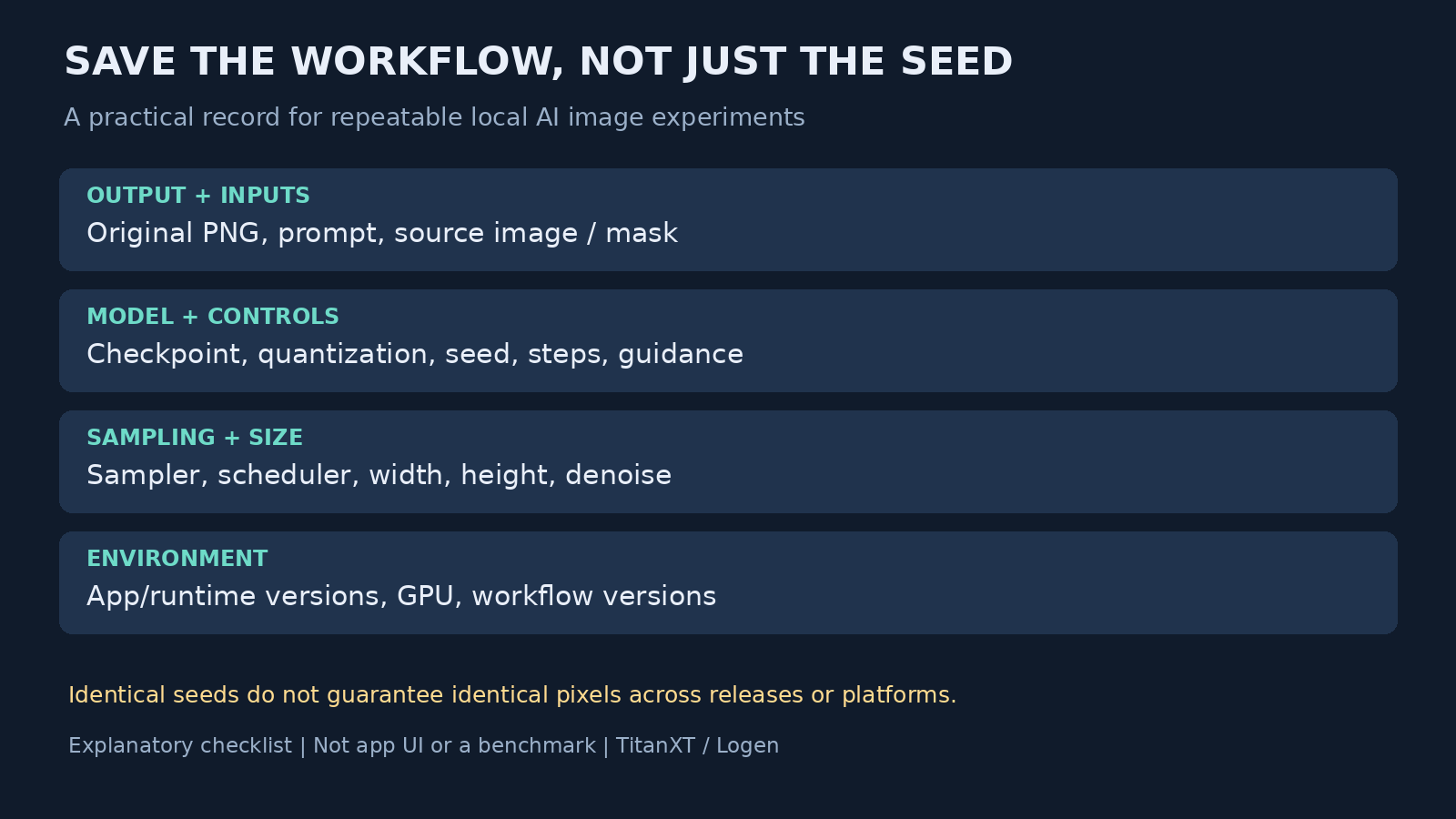
A fixed seed helps you compare local AI image runs, but it is not a complete recipe. You also need the model, prompt, sampling settings and software environment. Keep the original image file as well. Rebuilding the settings later is useful; it is not a guarantee that a different machine will recreate every pixel.
This guide explains what to save, how to test one change at a time and where Logen stores its project files. The illustration is an explanatory checklist, not an app screenshot or an image-quality comparison. We have not run a new GPU benchmark for this article.
What a seed controls
An image-generation pipeline starts with random values. A seed lets its random-number generator start from a known state. With the rest of the pipeline held constant, that gives you a useful baseline for comparing a prompt edit or another setting.
The Hugging Face Diffusers reproducibility guide explains an easy trap for Python users: a Generator object has state, and that state changes when it is used. Reusing the object is not the same as resetting it to the original seed. For a repeatable comparison, reseed it or create a fresh Generator before each call. This is a Diffusers API detail, not an instruction to add Python code inside Logen.
The same guide recommends a CPU Generator when reproducibility matters because CPU random-number generation is more stable across machines. That is a recommendation for people configuring Diffusers directly. It does not establish which generator a particular ComfyUI workflow uses.
Why the same number is not enough
The PyTorch reproducibility documentation says completely reproducible results are not guaranteed across releases, individual commits or platforms. CPU and GPU executions may also differ with identical seeds. Deterministic algorithms can reduce some variation on a fixed setup, but can cost performance and do not remove those cross-platform limits.
A checkpoint change is a separate problem. A seed does not identify the model weights, their quantization or the text encoder. If you replace the model file, the number alone cannot tell you what generated the earlier image. Treat a new checkpoint or runtime version as a new comparison baseline.
Save this record beside every image you intend to reuse
- The original output PNG, not just a screenshot of its preview.
- The full positive prompt and any negative prompt, without silently rewriting either.
- The model filename and variant, including quantization. Record a file checksum when your workflow exposes one.
- The seed, sampling steps, guidance, sampler, scheduler, width and height.
- Any input image, mask and denoise strength used for image-to-image work. Keep only reference assets you have permission to retain and use.
- The application and runtime versions, GPU model and relevant workflow or custom-node versions when a later comparison matters.
Do not assume that every application writes every item automatically. Open one real metadata file and check it before relying on an archive. Fill gaps in a short project note. A saved preset records controls; it does not necessarily preserve the model files or runtime dependencies behind them.
Use a baseline before changing the prompt
Pick one image and save its settings. Run that baseline again on the same setup. If the repeat already differs, investigate random-seed handling, workflow settings and runtime changes before judging a new prompt. Keep both output files so you can inspect the difference directly.
Next, hold the seed and other controls fixed while changing one part of the prompt. Compare the original output with the edited run. If you change the prompt, model and seed together, you cannot isolate which change affected the result.
Once the prompt is useful, explore different seeds separately. Those are new candidates, not failed reproductions. Keep the settings for the chosen result rather than only remembering the seed that seemed to work.
Where this fits in Logen
The current Logen user guide lists generated images and JSON metadata in Documents/Logen/images/, project chat threads in Documents/Logen/chats/ and saved workflow presets in Documents/Logen/presets/. Model checkpoints and the managed ComfyUI runtime live separately in the application-data directory. Backing up the image folder alone is therefore not a complete environment backup.
The guide describes seed, steps, guidance, sampler, scheduler and image-size controls in the two-column Workflow Studio. Use those controls to keep a comparison explicit, and inspect the saved JSON to see what your run recorded. Add a version note when archiving work for later reproduction; this article does not claim that Logen automatically captures every runtime dependency.
Logen is available for Windows and Linux x64, with FLUX.1-schnell on the Free tier. macOS is not supported. Check the current download and hardware requirements before installing. This checklist also works if you prefer to manage ComfyUI or Diffusers yourself.
Quick answers about seeds and saved workflows
Does using the same seed guarantee the same AI image?
No. A seed controls random-number generation, not the entire pipeline. Model weights, prompts, sampling controls and runtime details still matter. PyTorch also warns that identical seeds do not guarantee reproducible output across releases or platforms. Keep the original PNG and record the environment when an exact comparison matters.
What should I save besides the seed?
Save the original image, full prompt, model filename and quantization, steps, guidance, sampler, scheduler and image dimensions. For image-to-image work, also keep the input asset and denoise setting. Record application and runtime versions separately if the metadata does not include them. Check an actual metadata file rather than assuming it is complete.
Where does Logen keep generated images and presets?
The Logen user guide lists generated PNGs and JSON metadata under Documents/Logen/images/ and saved workflow presets under Documents/Logen/presets/. Project chats are stored separately under Documents/Logen/chats/. The managed runtime and model checkpoints use an application-data directory, so a project backup and a complete runtime backup are different things.
Plan your first local image workflow
Read the free local AI image starter guide for help choosing a starting setup. Before trying a large collection of models, make one baseline image, check its saved settings and keep the original file. That gives your next experiment a useful point of comparison.