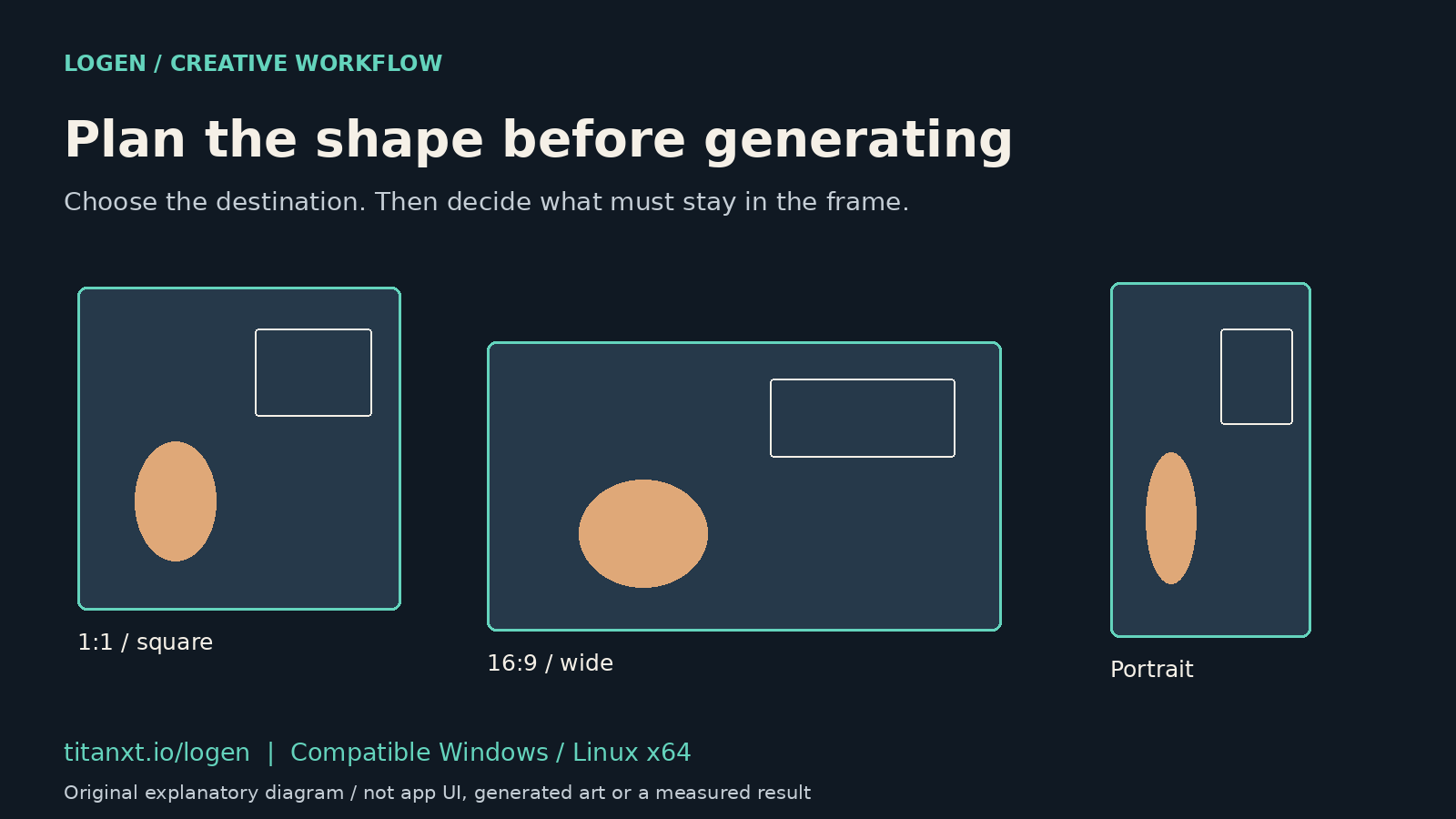
Choose where the image will go before you generate it. A square concept can look good on its own and still lose the subject when you crop it into a narrow card. Start with the destination shape, decide where the subject and any added text should sit, then make a small test image.
This guide separates documented Logen controls from ordinary design advice. The diagram is an original explanation of image shapes, not an app screenshot, a generated result or a hardware benchmark.
Start with the space the image has to fill
Write down the final use: a wide header, a square concept card or a portrait layout. Check the actual dimensions in the editor or publishing tool you will use. A platform preview can crop differently from the uploaded file, so inspect that preview before treating the image as finished.
Aspect ratio describes width relative to height. Resolution describes the number of pixels. A wide image can be small or large; a square image can also be small or large. Changing one does not automatically solve the other.
- For a wide header, decide where the subject belongs and which area must remain usable for text.
- For a portrait layout, check that a narrower crop keeps the important parts of the subject.
- If several destinations matter, sketch the crops before choosing the composition. Keep the original image as well as the exports.
Use the documented controls without guessing about every model
The Logen user guide lists square, landscape, portrait and wide presets in the Chat header: 1024 by 1024, 1024 by 768, 768 by 1024 and 1024 by 576. It also documents Width and Height controls in the Workflow Studio. These are documentation references, not a new test of every dimension in every workflow.
Black Forest Labs describes aspect-ratio and resolution flexibility in its original FLUX.1 announcement. That is a model-family statement. The application, selected workflow and installed model still determine which controls and sizes are available in your setup.
Pick a supported starting size and make one baseline image. Check the saved dimensions. If the workflow rejects a size, preserve the exact error and return to a documented preset rather than repeatedly increasing the resolution.
Leave room for the design that comes later
If you plan to add a headline, ask for a composition with space in the intended area. Treat the prompt as a request, not a guarantee. Inspect the actual output: a bright window, busy foliage or an object edge can make that space less useful than it first appears.
Try the real title in your layout editor before committing to an image. The typography, crop and layout are separate design steps; this article does not claim that Logen makes the finished graphic. A useful background is a starting point, not proof of a finished cover, advertisement or print-ready asset.
When comparing results, judge them at the size the audience will see. A composition with more small detail may be less readable on a phone. Keep the choice tied to the job rather than choosing whichever image looks busiest at full size.
Keep pixel arithmetic separate from GPU claims
Doubling both width and height gives four times as many pixels. It does not prove that generation will take four times as long or use exactly four times the VRAM. Model weights, encoders, runtime behaviour and other workloads affect the result. No GPU timings or memory measurements were made for this article.
Cropping removes part of the picture. Enlarging an export changes its pixel dimensions but does not, by itself, establish new detail. Inspect the final file at its intended display size, and use a suitable licensed upscaling workflow only if your project needs it and your application tier supports it.
Try one useful image in Logen Free
The Logen product page offers an ongoing Free tier with a FLUX.1-schnell starter workflow on compatible Windows and Linux x64 PCs. Hardware requirements and initial model setup apply; macOS is not supported in this release. Start with one image for a real project instead of downloading a collection of models before you know what you need.
Quick answers about local AI image shapes
Does a wider image automatically have more detail?
No. Aspect ratio describes shape, while pixel dimensions describe resolution. A wide image can contain fewer pixels than a large square image. Check the exported width and height, then inspect the actual result at its intended display size. Shape alone does not establish detail, quality or GPU requirements.
Can I turn one square output into every social format?
You can make different crops, but each crop removes parts of the original. Test the narrowest and widest layouts before choosing the image. If the subject or required text area disappears, make a different composition rather than assuming a resize will fix it. Keep typography and final layout in your design editor.
Does Logen Free remove hardware and model requirements?
No. Free is an ongoing application tier, not a cloud service or a promise that every PC can run every workflow. The product page lists Windows and Linux x64, a FLUX.1-schnell starter workflow and hardware requirements. Initial setup and model downloads still apply, and each model has its own licence terms.
Plan the first image before the next download
Choose one destination, check its crop and try Logen Free if your PC is compatible. For setup help, read the free local AI starter guide. Keep the first original and its settings so the next attempt has a clear point of comparison.