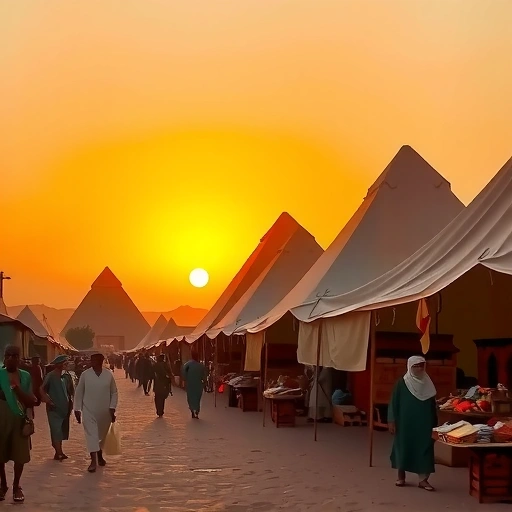
Think of ‘weird’ as an experimental tool. It helps you get results you might not expect. If you feel your Midjourney images are getting a little too polished or predictable, ‘weird’ is worth exploring. It’s great for trying new ideas and seeing what happens.
What the Weird Setting Does
The ‘weird’ parameter adds an element of unpredictability to your image generation. It can change composition, style, and even details in unexpected ways. You add it to your prompt like most parameters: `–weird [value]`. The value can be between 0 and 1000. You can even push it higher, up to 3000, for truly wild results.
Starting with Lower Weird Values
Let’s look at an example. Imagine prompting for a “photograph long shot businessman walking down a busy street blue color palette” at a 16:9 aspect ratio.
With no ‘weird’ parameter, Midjourney gives you standard, sharp images. Now, add `–weird 250`. You get a variety of different images. They might include things like motion blur or different camera angles you didn’t prompt for. This shows that ‘weird’ makes the output less predictable right away.
Exploring Higher Weird Values
What happens when you increase the value? At `–weird 500`, the images become drastically different. Composition can vary a lot, sometimes giving you waist shots or cutting off parts of the subject. While unpredictable, it can still produce interesting artistic effects.
Going even higher, like `–weird 1000`, `–weird 2000`, or `–weird 3000`, pushes the boundaries further. You might see styles that look flat, naive, or even like very early AI art or modern abstract pieces. These high values are perfect for pushing creative limits and generating truly unique visuals.
Weird and Simple Prompts
‘Weird’ seems to work really well with simple prompts. For example, a prompt like “nice summer day” can produce very different results depending on the ‘weird’ value. Without ‘weird’, you might get typical digital art scenes. With increasing ‘weird’ values, the images can become more abstract, painterly, or even distorted in interesting ways. This combo of simple prompts and ‘weird’ is a great way to find surprising styles.
Using Other Features with Weird Results
Midjourney has other tools that complement using the ‘weird’ parameter:
- Imagine All: If you use the ‘Describe’ command on an image (including a weird one), Midjourney gives you four prompt suggestions. The ‘Imagine All’ button lets you run all four at once, quickly exploring variations of a weird image in standard Midjourney style.
- Shorten: The ‘Shorten’ command is useful for understanding which words in your prompt Midjourney actually uses. If you run ‘Shorten’ on a prompt generated by ‘Describe’ (which isn’t directly connected to Midjourney’s main language system), you can see which terms are recognized. This can help you understand why a weird image turned out the way it did or refine future prompts.
- Image Prompts: You can take one of the weird images you generated and use it as an image prompt for a new generation. This lets you take the unusual look of the weird image and apply Midjourney’s standard generation capabilities to create updated, more detailed versions with a similar feel.
Bringing It Together
The ‘weird’ feature is a fun and useful addition to Midjourney. It provides a way to break away from common aesthetics and explore less predictable outcomes. Whether you use low values for subtle variation or high values for extreme abstraction, it’s a powerful tool for experimentation and creative discovery.
Try combining ‘weird’ with simple prompts, using ‘Describe’ and ‘Shorten’ to analyze results, and using your weird creations as image prompts for further development. Embracing the weirdness can lead to truly original art.
Do This Locally with Logen
Skip the subscription. Generate images like these on your own GPU — private, unlimited, no cloud dependency.
Midjourney vs Logen
| Feature | Midjourney | Logen |
|---|---|---|
| Cost | $10-60/mo | Free & Pro plans |
| Privacy | Cloud (images stored) | 100% local |
| Generations | Limited by plan | Unlimited |
| Internet Required | Always | No |
| Custom Models | No | Yes (any ComfyUI model) |
| GPU Required | No (cloud) | Yes (local) |
| Ease of Use | Discord bot | Desktop app |