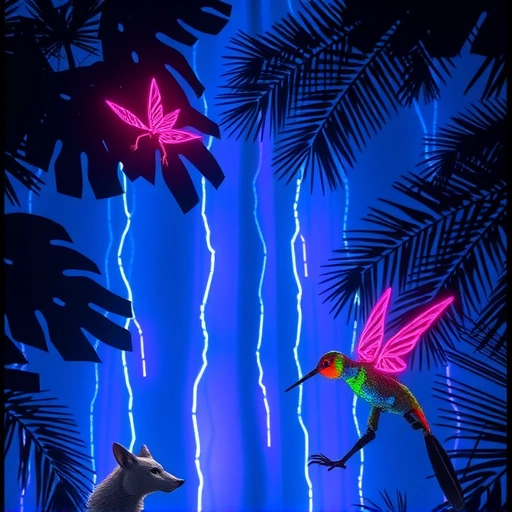
Getting Started with Midjourney
The easiest way to use Midjourney is through Discord. Here’s how to get set up:
Setting Up Discord
If you don’t already have Discord, head to discord.com and download the application. Discord is a platform that allows you to connect with different communities. Once installed, create an account.
Joining the Midjourney Server
To access Midjourney, you need to join their Discord server. Simply go to discord.gg/midjourney (also linked in the description). Accept the invite, and you’re in! This is the easiest way to interact with Midjourney.
Generating Your First AI Artwork
Now that you’re in the Midjourney Discord server, you can start creating art. Here’s how:
Using the /imagine Command
Go to one of the “newbie” channels in the Midjourney server. Type “/imagine” followed by a description of what you want to generate. This is where you input the keywords for your desired image.
Crafting the Perfect Prompt
Be specific with your keywords to get the best results. For example, instead of just saying “dragon,” try “a dragon riding scenario.” You can also add instructions to enhance the image’s realism and detail. For example, you can describe the lighting and style of the artwork.
Specifying the Midjourney Version and Aspect Ratio
To get the best results, add “–V 4” to your prompt. This tells Midjourney to use version 4 of its algorithm. You can also specify the aspect ratio by adding “–ar” followed by your desired ratio, such as “2:3”, “1:1”, or “3:2”. For example, a complete prompt might look like this: “/imagine a dragon riding scenario, detailed, realistic –V 4 –ar 2:3”.
Once you’ve entered your prompt, hit Enter and wait for Midjourney to generate your image.Visit TitanXT to learn more and revolutionize your creative process.
Understanding the Results
Midjourney will generate a grid of four images based on your prompt. Below the images, you’ll see several options:
“U” stands for “upscale.” If you like one of the images, click the corresponding “U” button to generate a higher-resolution version.
“U” stands for “upscale.” If you like one of the images, click the corresponding “U” button to generate a higher-resolution version.
“V” stands for “variation.” If you like the general style of one of the images, but want to see more variations, click the corresponding “V” button.
“V” stands for “variation.” If you like the general style of one of the images, but want to see more variations, click the corresponding “V” button.
The arrow buttons allow you to re-run the prompt and generate a new set of images.
The arrow buttons allow you to re-run the prompt and generate a new set of images.
Upscaling and Saving Your Art
Once you’ve upscaled an image, you can save it to your computer. You can also have the Midjourney Bot send you the full-resolution image via direct message. To do this, react to the message with the email emoji.Learn more at TitanXT.
Free vs. Paid Plans
Midjourney offers 25 free image generations. After that, you can subscribe to a paid plan for $10 a month to get 100 generations. Paid plans also allow you to generate images privately, as the free version is public.
Conclusion
Creating AI art with Midjourney is fun and accessible. With a bit of experimentation and the right prompts, you can create incredible images in minutes.Visit TitanXT today and start creating like a pro!
Do This Locally with Logen
Skip the subscription. Generate images like these on your own GPU — private, unlimited, no cloud dependency.
Midjourney vs Logen
| Feature | Midjourney | Logen |
|---|---|---|
| Cost | $10-60/mo | Free |
| Privacy | Cloud (images stored) | 100% local |
| Generations | Limited by plan | Unlimited |
| Internet Required | Always | No |
| Custom Models | No | Yes (any ComfyUI model) |
| GPU Required | No (cloud) | Yes (local) |
| Ease of Use | Discord bot | Desktop app |