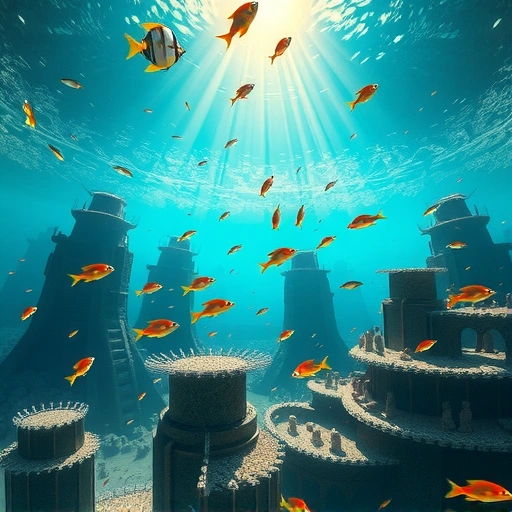
Getting Started with Midjourney
The easiest way to access Midjourney is through Discord. Think of Discord as a community-focused version of WhatsApp. Here’s how to set it up:
Setting Up Discord
Go to discord.com and download the app.
Go to discord.com and download the app.
Create an account by filling out the registration form.
Create an account by filling out the registration form.
With Discord ready, you’re one step closer to creating AI art.
Joining the Midjourney Server
Click on this invite link: discord.gg/midjourney. You can also find the link in the description below.
Click on this invite link: discord.gg/midjourney. You can also find the link in the description below.
Accept the invite to join the Midjourney Discord server.
Accept the invite to join the Midjourney Discord server.
Now that you’re in the Midjourney server, you can start creating art! Just head to one of the “newbie” channels.
Generating Your First AI Artwork
Here’s how to bring your imagination to life with Midjourney:
Using the /imagine Command
In a newbie channel, type `/imagine` followed by your prompt.
In a newbie channel, type `/imagine` followed by your prompt.
Describe the image you want to create using keywords. For example, you might type “a dragon riding scenario”.
Describe the image you want to create using keywords. For example, you might type “a dragon riding scenario”.
Adding Details for Realistic Results
To enhance the realism and detail, add specific instructions to your prompt. For instance, specify the lighting, style, or level of detail you want.
To enhance the realism and detail, add specific instructions to your prompt. For instance, specify the lighting, style, or level of detail you want.
Specifying the Midjourney Version and Aspect Ratio
Type `–V 4` to use version 4 of Midjourney, which provides the best results.
Type `–V 4` to use version 4 of Midjourney, which provides the best results.
Use `–ar` followed by your desired aspect ratio (e.g., `–ar 2:3`, `–ar 1:1`, or `–ar 3:2`).
Use `–ar` followed by your desired aspect ratio (e.g., `–ar 2:3`, `–ar 1:1`, or `–ar 3:2`).
For example, a complete prompt might look like this: `/imagine a dragon riding scenario, realistic, detailed –V 4 –ar 2:3`
After entering your prompt, hit Enter and wait for Midjourney to generate your images. This usually takes a few minutes.
Upscaling and Refining Your Art
Midjourney will generate a set of images based on your prompt. Here’s what to do next:
Understanding the Options
`U` stands for “upscale.” If you like a particular image, use the corresponding “U” button to generate a higher-resolution version.
`U` stands for “upscale.” If you like a particular image, use the corresponding “U” button to generate a higher-resolution version.
`V` stands for “variations.” If you like the general style of an image, use the “V” button to create more variations of it.
`V` stands for “variations.” If you like the general style of an image, use the “V” button to create more variations of it.
The arrows indicate “redo.” If the results aren’t what you expected, use the redo button to try again.
The arrows indicate “redo.” If the results aren’t what you expected, use the redo button to try again.
Example: Upscaling and Emailing Your Image
If you like the third variation, click “U3” to upscale it.
If you like the third variation, click “U3” to upscale it.
To get the full-resolution image, react to the message with the email emoji. The Midjourney Bot will then send you the image via DM.
To get the full-resolution image, react to the message with the email emoji. The Midjourney Bot will then send you the image via DM.
You can generate 25 images for free. If you want to continue creating, a subscription costs $10 per month for 100 images. A paid subscription also allows you to generate images privately.
Want to streamline your Midjourney experience? Check out the
Conclusion
Creating AI art with Midjourney is easy and fun. With a few simple steps, you can turn your ideas into stunning visuals. Start experimenting with different prompts and options to discover your unique artistic style. For more ways to enhance your Midjourney experience, be sure to explore the
Ready to take your Midjourney creations to the next level? Discover the power of automation with the
Do This Locally with Logen
Skip the subscription. Generate images like these on your own GPU — private, unlimited, no cloud dependency.
Midjourney vs Logen
| Feature | Midjourney | Logen |
|---|---|---|
| Cost | $10-60/mo | Free |
| Privacy | Cloud (images stored) | 100% local |
| Generations | Limited by plan | Unlimited |
| Internet Required | Always | No |
| Custom Models | No | Yes (any ComfyUI model) |
| GPU Required | No (cloud) | Yes (local) |
| Ease of Use | Discord bot | Desktop app |