Getting Started: Prepare Your AI Art
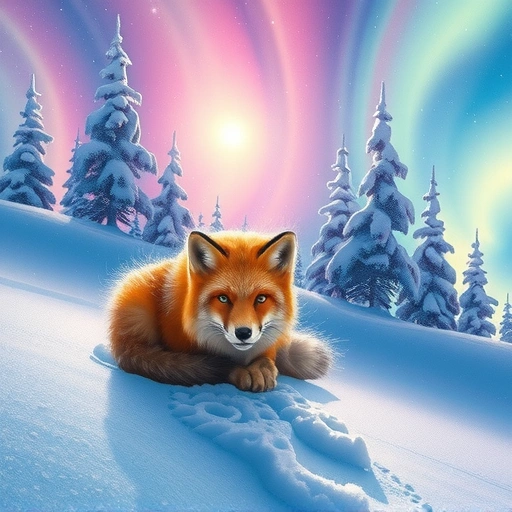
First, you need your image from Midjourney and your text design from Ideogram. For best results when combining them, make sure you upscale both images. Upscaling improves the quality and detail, which is important for a final cover design.
Setting Up in Canva
Canva is the design tool we’ll use to bring everything together. Create a new design using an ebook blank template or a custom size that fits your needs.
Add Your Midjourney Image
Copy your upscaled image from Midjourney. Paste it directly into your Canva template. Give it a moment to upload. Once it’s there, set the image as the background of your page.
Add Your Ideogram Text Design
Add a new blank page below the first one in your Canva project. Copy your upscaled image from Ideogram containing the text you want to use. Paste it onto this new blank page. Set this image as the background on this second page as well.
Using Canva’s “Grab Text” Magic
Canva has a helpful feature called “Grab Text.” This tool can isolate text within an image. Go to the page where you added the Ideogram image.
Select the Ideogram image. Look for the “Edit” or “Edit Photo” options. Find the “Grab Text” feature. Click it.
Canva will analyze the image and make the text editable. This works best with text that isn’t too stylized or swirly. (Handling swirly text is possible, but it involves different methods).
Please note that Canva’s Grab Text might not perfectly capture complex effects like gradients that aren’t part of Canva’s built-in system.
Working with the Grabbed Text
Once Grab Text is finished, you will see that the text elements are now selectable. You can select all the text or just parts of it if you only need certain words or phrases.
You can now move this text. Simply drag the selected text from the Ideogram page (page 2) up to your Midjourney image page (page 1).
On the Midjourney page, you can:
Move the text around to position it where you want on the cover.
Move the text around to position it where you want on the cover.
Change the font color, size, and style using Canva’s text editing tools.
Change the font color, size, and style using Canva’s text editing tools.
Add additional text elements, like an author name, using the same Grab Text method from the Ideogram image or by adding new text boxes directly in Canva.
Add additional text elements, like an author name, using the same Grab Text method from the Ideogram image or by adding new text boxes directly in Canva.
This process gives you complete control over the text placement and appearance on your chosen Midjourney image.
Finishing Your Cover
After you have the text placed exactly how you like it on the Midjourney image page, you no longer need the second page containing the original Ideogram image. You can simply delete that page.
You now have a single page combining the high-quality image from Midjourney with the flexible text elements from Ideogram, all edited and positioned in Canva.
This method allows you to take the strengths of different AI generators and combine them easily to create unique and professional covers. Building the perfect Midjourney image can be tedious, but tools like the
Beyond the Basics
This technique focuses on grabbing existing text. For different needs, like creating print covers from ebook art, Canva offers tools like “Magic Expand” to resize and extend your image. Exploring Canva’s other features can further enhance your combined AI creations.
If you enjoy using Midjourney, automating parts of the process can save significant time. Check out the
In Summary
Combining the image power of Midjourney with the text ability of Ideogram using Canva’s Grab Text feature is a straightforward way to design custom covers. Prepare your images by upscaling, use a Canva template, add both images, use Grab Text on the Ideogram page, move the text, edit it, and delete the extra page. You get the best of both worlds in a simple process.
For users looking to optimize their Midjourney prompting and generation process, consider exploring the
Do This Locally with Logen
Skip the subscription. Generate images like these on your own GPU — private, unlimited, no cloud dependency.
Midjourney vs Logen
| Feature | Midjourney | Logen |
|---|---|---|
| Cost | $10-60/mo | Free |
| Privacy | Cloud (images stored) | 100% local |
| Generations | Limited by plan | Unlimited |
| Internet Required | Always | No |
| Custom Models | No | Yes (any ComfyUI model) |
| GPU Required | No (cloud) | Yes (local) |
| Ease of Use | Discord bot | Desktop app |