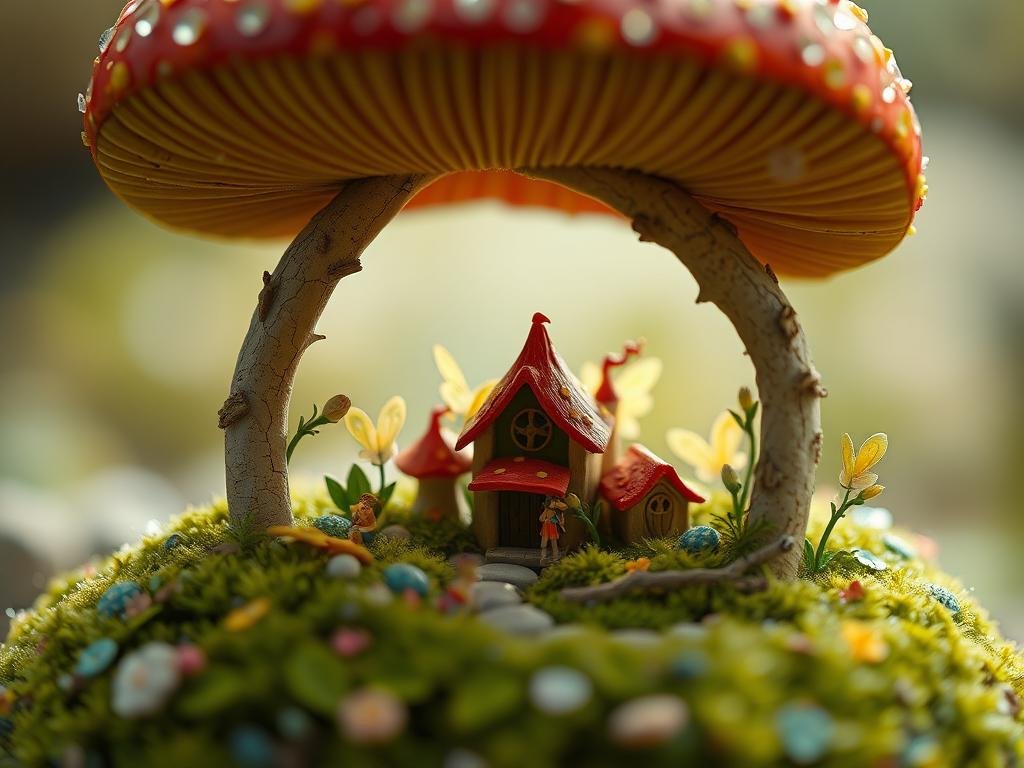
Generate Longer, Cohesive Videos
Many video models only create clips up to 8 seconds long. Midjourney changes this. You can now make videos up to 21 seconds long. What’s even better is that your scene stays the same throughout the entire video.
Other tools might stitch together several short clips. This can lead to different results in each part. Midjourney gives you one continuous scene. This means consistent visual quality from start to finish.
This new video feature works as an image-to-video model. You create images in Midjourney like you normally would. Then, you turn those high-quality images into a video. This means you keep that pure Midjourney look, but now it moves.
Simple Video Creation for Everyone
The best part about this new feature is how simple it is to use. It’s great for people who are just starting out with video. You don’t need to be an expert to make great clips.
To make your Midjourney experience even smoother, consider using the
How to Make Your First Midjourney Video
The process is straightforward. Here’s a step-by-step guide:
First, create an image in Midjourney like you always do. Just use your prompt and get the image you like.
First, create an image in Midjourney like you always do. Just use your prompt and get the image you like.
Once your image is ready, look for the ‘Animate’ option. Click on it.
Once your image is ready, look for the ‘Animate’ option. Click on it.
You will have two choices: ‘Auto’ or ‘Manual’ mode.
You will have two choices: ‘Auto’ or ‘Manual’ mode.
In ‘Auto’ mode, Midjourney decides how the video should move. For example, you can pick ‘high motion’ and let it handle the details.
In ‘Auto’ mode, Midjourney decides how the video should move. For example, you can pick ‘high motion’ and let it handle the details.
In ‘Manual’ mode, you can add prompts to guide the video movement yourself. This gives you more control.
In ‘Manual’ mode, you can add prompts to guide the video movement yourself. This gives you more control.
After selecting your mode, the video will start generating. It’s that easy!
Make Your Videos Longer
What if you want your 21-second video to be even longer?
Extend from the Current Image View
Once you have a video you’re happy with, you can extend it. Find the video and select it. The ‘Animate’ button will now show as ‘Extend Video’. You can then choose ‘high motion’, ‘low motion’, ‘auto’, or ‘manual’ again to keep adding to your clip.
Extend Directly from the Main Page
You can also extend videos right from the main Midjourney page. Just move your mouse over the image. You will see options like ‘Extend Auto’ or ‘Extend Manual’. Click one of these buttons to make your video longer without opening it first.
For creators who need to produce many videos or manage multiple projects, the
Start Creating Videos Today
Midjourney bringing video generation is a big step forward. With its focus on longer, continuous clips and simple controls, it’s a powerful tool for creators. Whether you want quick animations or longer, story-driven content, this new feature makes it possible.
Ready to take your Midjourney creations to the next level? Explore the possibilities with the new video feature and consider how tools like the
Do This Locally with Logen
Skip the subscription. Generate images like these on your own GPU — private, unlimited, no cloud dependency.
Midjourney vs Logen
| Feature | Midjourney | Logen |
|---|---|---|
| Cost | $10-60/mo | Free |
| Privacy | Cloud (images stored) | 100% local |
| Generations | Limited by plan | Unlimited |
| Internet Required | Always | No |
| Custom Models | No | Yes (any ComfyUI model) |
| GPU Required | No (cloud) | Yes (local) |
| Ease of Use | Discord bot | Desktop app |