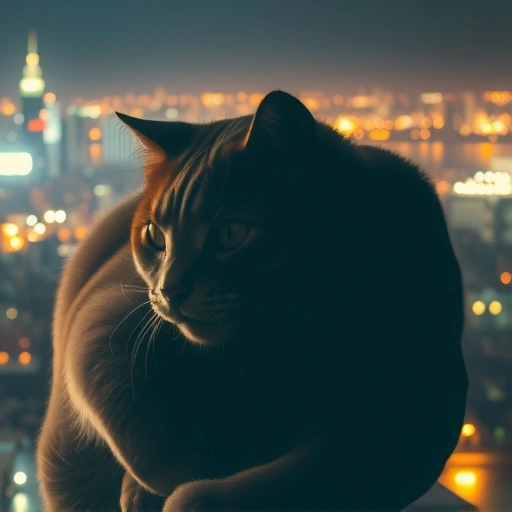
Understanding What Makes an Image Look Real
AI models like Midjourney are trained on vast amounts of data, including many real photographs. To get a realistic outcome, you need to tell the AI exactly what real-world elements you want it to include. Think about details like lighting, texture, context, and perspective.
It Starts with Your Prompt
Your initial prompt is the most important part. Instead of just saying “a dog,” try saying “a golden retriever sitting on a worn leather armchair in a sunlit living room.” Adding specific details about the subject, setting, and conditions helps guide the AI towards realism.
Prompting Techniques for Realism
Certain words and phrases help signal Midjourney to aim for a realistic style. Consider using terms like:
photorealistic
photorealistic
photograph of
photograph of
shot on a [camera type, e.g., Canon EOS R5, 35mm film]
shot on a [camera type, e.g., Canon EOS R5, 35mm film]
realistic lighting
realistic lighting
detailed texture
detailed texture
Combining descriptive language with these cues increases the chances of a realistic output.
Using Parameters Effectively
Parameters can also influence the outcome:
`–ar`: Setting a standard aspect ratio like `–ar 16:9` or `–ar 4:3` often feels more natural for photographic styles.
`–ar`: Setting a standard aspect ratio like `–ar 16:9` or `–ar 4:3` often feels more natural for photographic styles.
`–v`: Experimenting with different versions of the Midjourney model (e.g., `–v 5.2`) can give different looks. Sometimes older or newer versions handle realism in unique ways.
`–v`: Experimenting with different versions of the Midjourney model (e.g., `–v 5.2`) can give different looks. Sometimes older or newer versions handle realism in unique ways.
`–sref`: Using a style reference image with `–sref` allows you to guide the AI’s style based on an existing realistic image you provide.
`–sref`: Using a style reference image with `–sref` allows you to guide the AI’s style based on an existing realistic image you provide.
Refining Your Realistic Images
Getting it perfect on the first try is rare. Use the U (upscale) and V (variation) buttons to explore options. Upscaling reveals more detail, and creating variations lets you subtly change composition, lighting, or subject details to get closer to your desired realistic look.
Sometimes, providing an image prompt (`/imagine [your image URL] descriptive prompt`) can anchor the style or subject matter in reality, which the text prompt then refines.
Streamlining Your Realism Efforts
Generating and refining many prompts to achieve realistic results can take time. Tools designed to help manage and automate aspects of your Midjourney workflow can be a significant help. The
Putting It All Together
Creating realistic images involves combining detailed, descriptive prompts with appropriate parameters and using the variation/upscale tools effectively. Pay attention to the elements that make real photos look real: lighting, shadows, focus, depth of field, and textures.
Remember that practice is key. The more you experiment with different prompts and settings, the better you’ll become at predicting how Midjourney will interpret your requests for realism. Tools like the
Final Thoughts
Achieving photorealistic results with Midjourney is about more than just adding the word “photorealistic.” It requires a thoughtful approach to prompting that considers the fine details of reality. By focusing on descriptive language, understanding parameters, and refining your outputs, you can significantly improve the realistic quality of your AI-generated images. If you’re looking to optimize your creative process and generate realistic art more efficiently, consider exploring the
Do This Locally with Logen
Skip the subscription. Generate images like these on your own GPU — private, unlimited, no cloud dependency.
Midjourney vs Logen
| Feature | Midjourney | Logen |
|---|---|---|
| Cost | $10-60/mo | Free |
| Privacy | Cloud (images stored) | 100% local |
| Generations | Limited by plan | Unlimited |
| Internet Required | Always | No |
| Custom Models | No | Yes (any ComfyUI model) |
| GPU Required | No (cloud) | Yes (local) |
| Ease of Use | Discord bot | Desktop app |