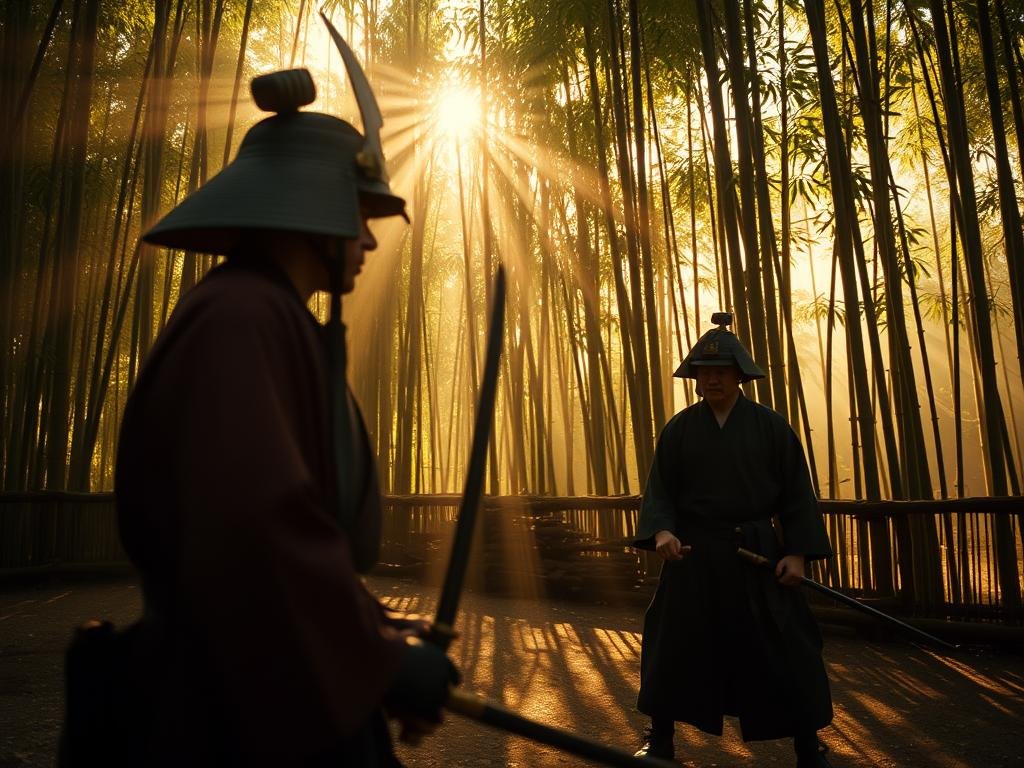
In this guide, we’ll look at three creative ways you can use Runway First Frame to make awesome videos. We’ll cover changing the entire style, adding details or effects, and telling a story with props and characters.
Method 1: Change Your Video’s Style
The most direct use of First Frame is changing the overall look of your video to match a new style. Think anime, painterly, cyberpunk, or anything you can imagine.
Styling Your First Frame
First, you need your video’s starting picture (the first frame). You can often grab this using video player tools or directly within Runway. Once you have the image, you need to style it.
Popular ways to style this image include:
Runway’s Own Tools: They have built-in image styling features.
Runway’s Own Tools: They have built-in image styling features.
Magnific AI: This tool, known for enhancing images, now has a feature called Mystic where you can use your first frame’s structure and a text description to create a new styled image.
Magnific AI: This tool, known for enhancing images, now has a feature called Mystic where you can use your first frame’s structure and a text description to create a new styled image.
Midjourney: You can use Midjourney’s features to retexture or restyle your initial image based on text prompts.
Midjourney: You can use Midjourney’s features to retexture or restyle your initial image based on text prompts.
The idea is to create a new version of your first frame in the style you want the whole video to have.
Applying the Style in Runway
Upload your original video to Runway. Then, select the option to use a “Styled First Frame.” You’ll upload the new, styled image you created. Runway has a setting called “Structure Transformation.” This setting controls how much the final video keeps the motion of your original video versus how much it follows the new styled image. A lower number means it stays closer to the original video’s movement.
It’s best to try different settings here. Sometimes a middle value works well, keeping much of the original video’s action while adding the new style. Fast movements in the original video can sometimes make the style less steady, but for slower sections or still objects, it works great.
Method 2: Add Effects with Inpainting
Beyond changing the full style, you can use First Frame to add specific elements or effects to your video that weren’t there before. This is like “painting in” new details onto your characters or scene.
How Inpainting Works
The process is similar to styling, but instead of changing the whole image style, you edit your first frame to add items or change parts of it. You can use image editing software like Photoshop, Photopea (a free online tool), or Canva’s AI features (like Generative Fill) to add these changes to your first frame image.
For example, you could:
Add graphics or text to a person’s shirt.
Add graphics or text to a person’s shirt.
Put a bandage on an arm.
Put a bandage on an arm.
Change a background section.
Change a background section.
Add accessories, like a backpack or a different helmet.
Add accessories, like a backpack or a different helmet.
Once you’ve edited the first frame with these new elements, upload it as your styled first frame in Runway. Runway will then try to keep these added details consistent and moving naturally with the rest of the video.
Using this method, you can easily add consistent visual effects or props to characters throughout your video without needing complex video editing.
Creating unique styles and adding details like this can be a fun part of the AI video workflow. If you’re inspired by automating creative processes, check out the
Method 3: Create Story Scenes & Use Act One
Runway First Frame is also great for building out story elements and scenes, especially when combined with other tools like Runway’s Act One feature.
Using Props and Environments
You can film yourself using simple physical props (even cardboard ones) on a green screen. Grab the first frame of that green screen shot. Then, use a tool like Magnific AI to restyle that first frame, replacing the green screen background and turning your physical prop into something digital and detailed, matching a story setting (like a medieval battlefield or a jungle).
Upload this new, styled first frame to Runway. Runway then attempts to create a video where you are in the new environment, interacting with the restyled prop. While fast movements might lose detail, slower movements or interactions with props can look quite good.
You can also interact with things in your real environment, like hanging a piece of fabric. Restyle the first frame to turn that fabric into something else, like a jungle vine. When you run this through Runway, it can make it look like you are moving that new element (the vine) in the video.
Adding Life with Runway Act One
Runway has another powerful tool called Act One. This feature lets you record yourself performing the facial expressions and voice dialogue you want. Act One can then apply that performance to a static image or even a character generated using First Frame. This brings a whole new level of life and storytelling to your AI-generated videos.
Combining First Frame (for style, inpainting, and scene setting) with Act One (for character performance) opens up many possibilities for creating unique, short, story-driven video clips.
Exploring creative possibilities with AI often involves trying different tools and combining steps. If you want to streamline parts of your creative process, especially when generating images that could serve as stylized first frames, consider exploring tools like the
Conclusion
Runway’s First Frame tool is more flexible than it might first seem. By styling just the first picture of your video, you can achieve incredible results, from changing the entire look and feel to adding specific elements and building out story scenes. Experimenting with different first frame styles, editing techniques, and Runway’s settings like “Structure Transformation” will help you get the best results for your creative ideas.
Give these techniques a try and see how you can make your videos stand out.
Ready to explore more AI creative tools? If image generation is part of your workflow, check out the
Do This Locally with Logen
Skip the subscription. Generate images like these on your own GPU — private, unlimited, no cloud dependency.
Midjourney vs Logen
| Feature | Midjourney | Logen |
|---|---|---|
| Cost | $10-60/mo | Free |
| Privacy | Cloud (images stored) | 100% local |
| Generations | Limited by plan | Unlimited |
| Internet Required | Always | No |
| Custom Models | No | Yes (any ComfyUI model) |
| GPU Required | No (cloud) | Yes (local) |
| Ease of Use | Discord bot | Desktop app |