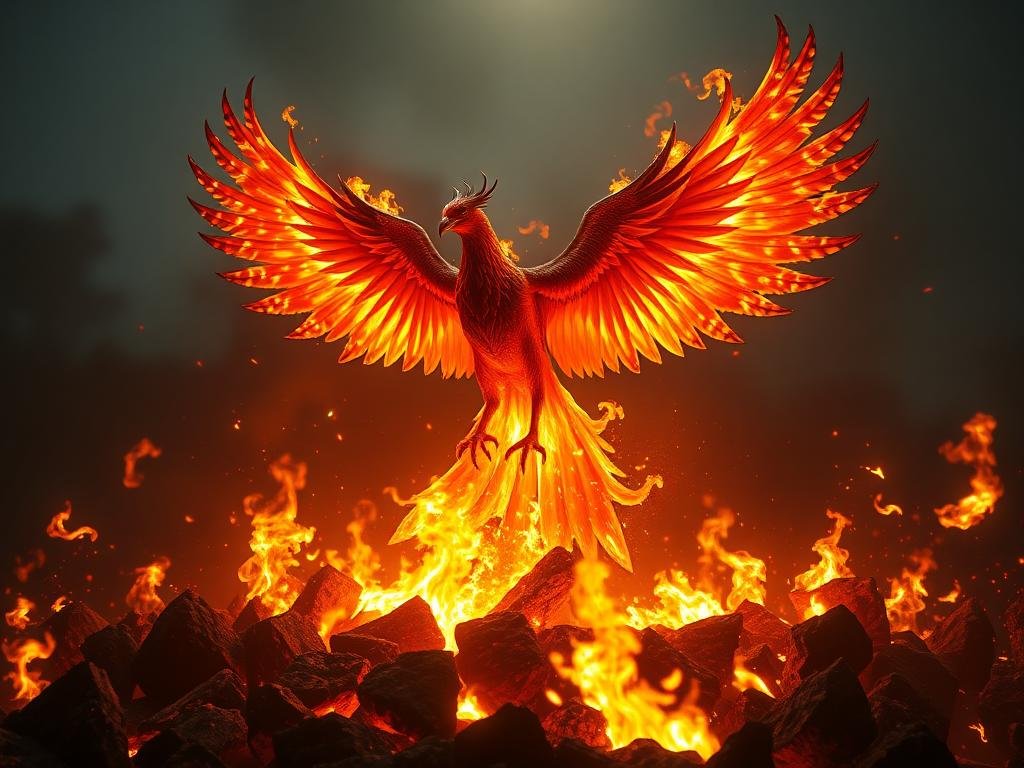
Beginning Your Artistic Journey with Midjourney
Starting with Midjourney is straightforward. You typically interact with it through a Discord server. Once you join, you can begin generating images right away by typing simple commands.
First Steps and Basic Commands
Join the Midjourney Discord server.
Join the Midjourney Discord server.
Go to one of the “newbie” image generation channels.
Go to one of the “newbie” image generation channels.
Type `/imagine` followed by your prompt. For example, `/imagine a cat flying a spaceship`. This is your starting point for any image generation.
Type `/imagine` followed by your prompt. For example, `/imagine a cat flying a spaceship`. This is your starting point for any image generation.
The system will then generate four images based on your text. You can choose to upscale one of these, or create variations, which we will cover next.
Refining Your Creations: Upscaling and Variations
After your initial images appear, you will see buttons below them. These buttons help you refine your work.
Understanding the U and V Buttons
[LI]
[LI]The “U” buttons (U1, U2, U3, U4) are for upscaling. Clicking a “U” button will make a high-resolution version of that specific image.[/LI]
[LI]The “V” buttons (V1, V2, V3, V4) are for variations. Clicking a “V” button will create four new images similar to the chosen one, allowing for different styles or compositions.[/LI]
[/UL]
Using these buttons wisely helps you move from a general idea to a specific, high-quality image. If you find yourself spending a lot of time on repetitive tasks with Midjourney, consider exploring tools like the
Crafting Better Prompts for Better Art
The quality of your image depends a lot on the quality of your prompt. A good prompt is clear, detailed, and guides the AI effectively.
Key Elements of Effective Prompts
[LI]
[LI][B]Be Specific:[/B] Instead of “a house,” try “a cozy cottage with a thatched roof in a forest.”[/LI]
[LI][B]Add Detail:[/B] Include colors, moods, time of day, and artistic styles. “A cozy cottage with a thatched roof in a forest at sunset, golden light, impressionist painting style.”[/LI]
[LI][B]Use Parameters:[/B] Midjourney has parameters like `–ar` for aspect ratio or `–no` to exclude elements. For example, `–no trees` would remove trees from your image.[/LI]
[/UL]
Experimenting with different words and parameters is key. Keep your prompts focused but descriptive. The more clearly you describe your vision, the closer Midjourney will get to it.
Iterative Improvement: Learning from Your Generations
Creating AI art is a process of trial and error. Each generation gives you information to improve your next prompt.
Tips for Learning and Improving
[LI]
[LI][B]Analyze Results:[/B] Look at what worked and what didn’t in each set of images. Did a specific word have an unexpected effect? Note it down.[/LI]
[LI][B]One Change at a Time:[/B] When you adjust your prompt, try to change only one thing at a time. This helps you understand which changes cause which effects.[/LI]
[LI][B]Learn from Others:[/B] Look at images others create in the Midjourney community channels. See how they structure their prompts for inspiration.[/LI]
[/UL]
This iterative approach will quickly enhance your prompting skills. If you are looking to create many images or manage multiple projects, automating parts of your Midjourney process can save a lot of time. Explore how the
Conclusion: Your Path to AI Art Success
Midjourney offers an incredible way to bring your creative visions to life with artificial intelligence. By understanding the basic commands, learning to refine your images, and mastering prompt creation, you can achieve impressive results. Remember, practice and experimentation are your best tools for success. Keep exploring, keep creating, and enjoy the process of turning your imagination into beautiful AI art.
To further enhance your Midjourney experience and simplify your creative workflow, consider checking out the
Do This Locally with Logen
Skip the subscription. Generate images like these on your own GPU — private, unlimited, no cloud dependency.
Midjourney vs Logen
| Feature | Midjourney | Logen |
|---|---|---|
| Cost | $10-60/mo | Free |
| Privacy | Cloud (images stored) | 100% local |
| Generations | Limited by plan | Unlimited |
| Internet Required | Always | No |
| Custom Models | No | Yes (any ComfyUI model) |
| GPU Required | No (cloud) | Yes (local) |
| Ease of Use | Discord bot | Desktop app |