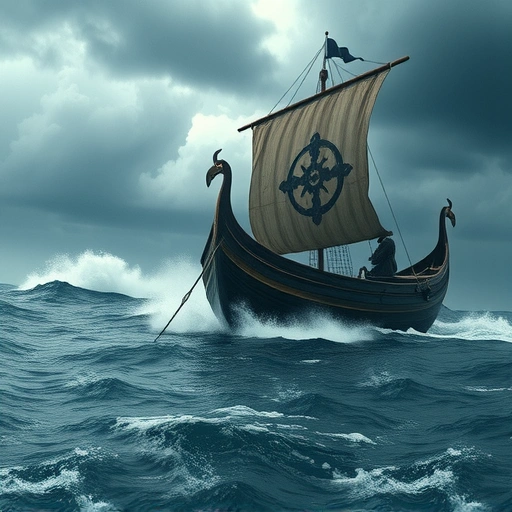
Key Improvements in Midjourney V7
Compared to version 6.1, the new version 7 shows significant steps forward:
Better Prompt Understanding: Midjourney V7 is better at understanding what you ask for.
Better Prompt Understanding: Midjourney V7 is better at understanding what you ask for.
Improved Image Quality: Images often look sharper and more polished.
Improved Image Quality: Images often look sharper and more polished.
Realistic Textures: Textures appear much more lifelike.
Realistic Textures: Textures appear much more lifelike.
Raw Photography Look: It’s easier to get images that feel like raw photos, reducing the stock photo feel.
Raw Photography Look: It’s easier to get images that feel like raw photos, reducing the stock photo feel.
Abstract Prompt Handling: Prompts that require more abstract thinking now work better, though some still fail.
Abstract Prompt Handling: Prompts that require more abstract thinking now work better, though some still fail.
Areas That Didn’t Change Much
While many things improved, some areas saw little change:
Distant Faces: Rendering faces in crowded scenes at a distance hasn’t improved significantly.
Distant Faces: Rendering faces in crowded scenes at a distance hasn’t improved significantly.
Text Rendering: Showing text in images still only has very minor improvements.
Text Rendering: Showing text in images still only has very minor improvements.
Major New Features
Two of the most impactful additions in V7 are:
Personalization: This is now turned on by default. You can turn it off if you prefer. This lets Midjourney learn your style.
Personalization: This is now turned on by default. You can turn it off if you prefer. This lets Midjourney learn your style.
Draft Mode: This new mode lets you generate images much faster, almost in real-time. It’s great for quickly trying ideas.
Draft Mode: This new mode lets you generate images much faster, almost in real-time. It’s great for quickly trying ideas.
These new features help you generate and refine images more quickly. For even faster workflows and automation, consider exploring tools like the
How to Start Using Midjourney V7
Using V7 requires a specific step:
Go to midjourney.com.
Go to midjourney.com.
Click “Create” on the left side, then go to “Settings.”
Click “Create” on the left side, then go to “Settings.”
Select Version 7 as your default model.
Select Version 7 as your default model.
However, to enable Version 7, you must first train your personalized style. If you had a personalized style in V6, it won’t work in V7. You need to create a new one. To do this, click “Unlock Personalization” and quickly rate 200 image pairs. Once you return to the creation screen, Version 7 will be available.
Prompting in V7
V7 works well with natural language. You don’t always need complex structures. A good approach is:
Start with the Medium: Specify the type of image (e.g., “cinematic portrait photo,” “full body shot”). This sets the base for your image.
Start with the Medium: Specify the type of image (e.g., “cinematic portrait photo,” “full body shot”). This sets the base for your image.
Describe Your Scene: Add details about the subject, setting, action, motion, shadows, and light. Be as detailed as you like.
Describe Your Scene: Add details about the subject, setting, action, motion, shadows, and light. Be as detailed as you like.
Once you send your prompt, Midjourney starts creating. A helpful tip: press the upper arrow key right after sending a prompt to quickly bring it back for editing. This allows for fast adjustments.
Refining Your Generated Images
After generation, you have options:
Variations: Use the V options to make subtle or strong changes to a chosen image.
Variations: Use the V options to make subtle or strong changes to a chosen image.
Upscale: Choose to upscale subtly (improves textures) or creatively (can make bigger changes).
Upscale: Choose to upscale subtly (improves textures) or creatively (can make bigger changes).
Change Shot Type: Easily shift from a portrait to a full body, low angle, or high angle shot.
Change Shot Type: Easily shift from a portrait to a full body, low angle, or high angle shot.
Adjust Aspect Ratio: Use the interactive slider in settings or the `–ar` parameter (e.g., `–ar 9:16`).
Adjust Aspect Ratio: Use the interactive slider in settings or the `–ar` parameter (e.g., `–ar 9:16`).
Managing different image variations and versions manually can be time-consuming. Tools designed for automation can make this much easier. Learn more about streamlining your workflow with the
Personal Style vs. Midjourney Aesthetics
With Version 7, you can choose how much your personalized style or Midjourney’s standard aesthetic influences the image.
Use Your Personal Style: Turn on the personalization setting to apply the style you trained.
Use Your Personal Style: Turn on the personalization setting to apply the style you trained.
Use Midjourney Standard: Turn off personalization and rely on Midjourney’s default look. You can control this influence with the stylization slider.
Use Midjourney Standard: Turn off personalization and rely on Midjourney’s default look. You can control this influence with the stylization slider.
Raw Mode: To heavily rely on your prompt and style choices, stripping away most of Midjourney’s default aesthetic, click “Raw Mode” in settings or add `–style raw` to your prompt.
Raw Mode: To heavily rely on your prompt and style choices, stripping away most of Midjourney’s default aesthetic, click “Raw Mode” in settings or add `–style raw` to your prompt.
Exploring Draft Mode
Draft mode speeds up image creation significantly – up to 10 times faster than normal V7. It’s perfect for trying out ideas quickly.
Turn on Draft Mode in settings.
Turn on Draft Mode in settings.
Use text or even voice prompts to generate.
Use text or even voice prompts to generate.
Draft mode results follow your latest settings.
Draft mode results follow your latest settings.
Voice mode internally improves the prompt based on what it hears, likely using a language model.
Voice mode internally improves the prompt based on what it hears, likely using a language model.
Keep in mind that Draft Mode produces images with lower quality because it’s an ideation tool. If you like an image from Draft Mode, use the “Enhance” option. This will send the prompt to the full V7 model to render a higher-quality version.
Other Notable Points
Existing style reference libraries from previous versions still seem to work with V7, which is helpful. Also, Midjourney is working on a new “omniconsistency” feature for consistent characters, locations, and objects, but this advanced feature is not part of the current V7 release.
Final Thoughts
Midjourney V7 brings worthwhile improvements, especially in general image quality and the speed of ideation with Draft Mode. The need to retrain personalization is a minor hurdle, but the flexibility in controlling style is a strong addition. Experiment with the new features to find what works best for your creative process.
Speed up your Midjourney workflow even further by automating repetitive tasks. Check out the
Do This Locally with Logen
Skip the subscription. Generate images like these on your own GPU — private, unlimited, no cloud dependency.
Midjourney vs Logen
| Feature | Midjourney | Logen |
|---|---|---|
| Cost | $10-60/mo | Free |
| Privacy | Cloud (images stored) | 100% local |
| Generations | Limited by plan | Unlimited |
| Internet Required | Always | No |
| Custom Models | No | Yes (any ComfyUI model) |
| GPU Required | No (cloud) | Yes (local) |
| Ease of Use | Discord bot | Desktop app |