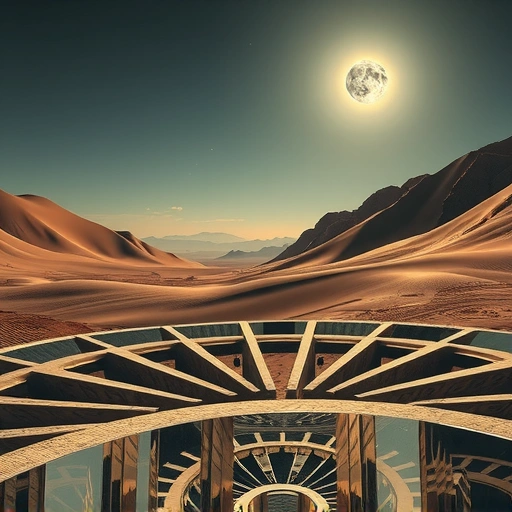
Looking Back at Midjourney V6
Midjourney V6 was known for realism. It was great at making things look like real photographs. Pictures had sharp details, realistic body parts, and dramatic lighting. It captured scenes with beautiful fog, light, and shadows.
However, V6 wasn’t always the best for creative or abstract ideas. It sometimes struggled with prompts that weren’t focused on pure realism. While it excelled at environmental details, it was just the beginning compared to V7.
Getting Started with Version 7
To use Midjourney V7, you start on the midjourney.com website. Make sure you are logged in. Find the ‘personalize’ option and create a profile. This step is important because V7 personalizes the model based on your taste. You need to rate about 200 images to build this profile if you haven’t already.
V7 is the first Midjourney model to have personalization active by default. Once you finish rating the images, your personalization profile is ready. You can then switch V7 on or off. You can do this on the Midjourney website or through the Discord bot interface. On the web, look for a drop-down menu next to where the version is shown.
Key Features in Midjourney V7
Better Prompt Understanding and Zoom
V7 understands complicated or abstract prompts much better. You will see fewer issues with hands or faces, and the images match your descriptions more accurately. Zooming and outpainting features also feel smoother and more natural than before in V6.
Introducing Draft Mode
Draft mode is a major new part of V7. It creates low-resolution previews of images almost instantly. This is perfect for trying out many ideas quickly before spending time on a full-quality render. Think of it like making quick sketches before painting.
Draft mode is very fast – up to 10 times faster than the standard mode. It also costs less to use, about half the price of a standard generation. This makes experimenting with ideas much more efficient.
Comparing V7 and V6
Let’s look at a couple of examples to see the difference.
Example 1: Post-Apocalyptic Forest
Using the prompt “A post-apocalyptic forest. Glowing mushrooms concept art style” shows a clear difference. V7 delivers an image that looks much more like concept art compared to V6. V7 seems to capture the desired artistic style better.
Example 2: Steampunk Airship
For “A steampunk airship flying through a stormy sky. Dramatic lightning strikes, intricate mechanical details, clouds swirling, high detail concept art style,” V7 again shows improvements. The lighting and overall scene in V7 look much better and support the storytelling feel of the image.
These examples show V7’s strength in capturing artistic styles and details mentioned in prompts, especially when compared to V6’s focus on pure realism.
Should You Switch to V7?
Upgrading to V7 or using it alongside V6 depends on your needs.
- If speed matters, especially for testing many prompt ideas, Draft Mode in V7 is game-changing.
- If you like trying different artistic styles and abstract concepts, V7 gives you more freedom.
- If you prefer ultra-realistic images, V6 is still strong in that area.
The good news is you can easily switch between V6 and V7 anytime. You aren’t locked into one or the other.
Conclusion
Do This Locally with Logen
Skip the subscription. Generate images like these on your own GPU — private, unlimited, no cloud dependency.
Midjourney vs Logen
| Feature | Midjourney | Logen |
|---|---|---|
| Cost | $10-60/mo | Free & Pro plans |
| Privacy | Cloud (images stored) | 100% local |
| Generations | Limited by plan | Unlimited |
| Internet Required | Always | No |
| Custom Models | No | Yes (any ComfyUI model) |
| GPU Required | No (cloud) | Yes (local) |
| Ease of Use | Discord bot | Desktop app |