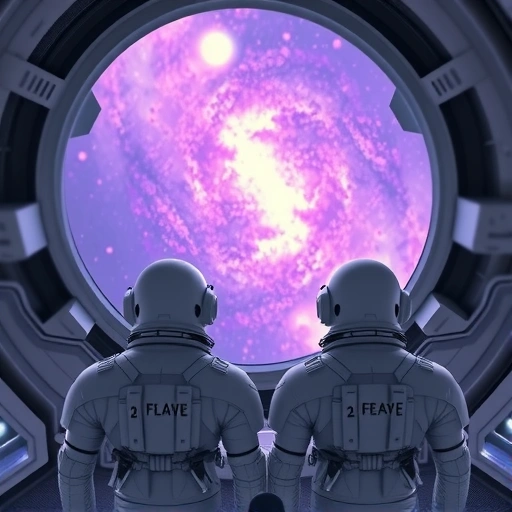
What’s New with Midjourney V6?
Midjourney has improved a lot. Version 6 is better at understanding what you ask for. It creates more accurate images based on your words. This means you can get professional-looking art that looks closer to what you imagined.
How Prompting Works Now
Writing prompts is a bit different in version 6. Before, you might use short phrases. Now, being more detailed helps the AI understand every part of your idea.
For example, instead of “blue sports car in Monaco pink road overcast weather,” you’d write something more like:
Wide-angle product photo of a sports car in Monaco. The sports car is bright blue. The road is painted pink. The weather is overcast.
This detailed language helps the AI get every element right.
Testing Prompts: V5 vs V6
Let’s look at an example:
V5 style: A horse running through the field oil painting Double Exposure glitch core aggressive inertia
V6 style: An oil painting of an aggressive horse. The horse is running through the field with intense inertia. There is a Double Exposure effect with a glitchy nature.
See the difference? The V6 prompt separates the ideas and gives more specific instructions. This leads to images that match your vision better.
Create Your First Image
Let’s try making an image. Open Midjourney and type this prompt:
wide-angle product photo of a bright blue sports car on a pink road overcast weather
Look at the image the AI creates. If it’s not exactly what you want, change your prompt. Add or change details. For instance, you could say: a bright blue sports car with shiny chrome wheels on a pink road with overcast weather and light rain.
Adding more detail helps the AI understand you better.
Managing many detailed prompts and variations can take time. Tools like the
Advanced Prompting Tips
To make your AI art even better, try these techniques:
Be Specific: Use clear words to describe colors, textures, and light. Instead of “blue car,” try “metallic blue car with a glossy finish.”
Be Specific: Use clear words to describe colors, textures, and light. Instead of “blue car,” try “metallic blue car with a glossy finish.”
Combine Ideas: Put different things together in one prompt. Like “a vintage car with modern cityscape background and dramatic lighting.”
Combine Ideas: Put different things together in one prompt. Like “a vintage car with modern cityscape background and dramatic lighting.”
Use Styles: Ask for specific art styles, like “a watercolor painting of a serene landscape” or “futuristic digital art of a busy city.”
Use Styles: Ask for specific art styles, like “a watercolor painting of a serene landscape” or “futuristic digital art of a busy city.”
Compare Terms: Use words like “more,” “less,” “brighter,” and “darker” to guide the AI. For example, “a brighter sunset with vivid colors.”
Compare Terms: Use words like “more,” “less,” “brighter,” and “darker” to guide the AI. For example, “a brighter sunset with vivid colors.”
Tips for Writing Prompts in Version 6
Detail is key: Give the AI lots of information.
Detail is key: Give the AI lots of information.
Start small, then add: Begin with a basic idea and add details slowly.
Start small, then add: Begin with a basic idea and add details slowly.
Use periods: Separate different ideas in your prompt with periods. This makes each part clear for the AI.
Use periods: Separate different ideas in your prompt with periods. This makes each part clear for the AI.
Keep trying: Experiment with different prompts. See how the AI reacts. The more you practice, the better your results will be.
Keep trying: Experiment with different prompts. See how the AI reacts. The more you practice, the better your results will be.
Check and change: Look at your generated image. What worked? What didn’t? Change your prompt and try again. This helps you learn.
Check and change: Look at your generated image. What worked? What didn’t? Change your prompt and try again. This helps you learn.
Practical Examples
Fantasy Scene
Imagine a fantasy world. Start with: a mystical forest with tall trees.
Then add details: a mystical forest with tall trees growing mushrooms and a sparkling river under a starry night sky.
The AI will change the image as you add details.
Portrait
Start with: a portrait of a young woman.
Add specifics: a portrait of a young woman with long curly red hair wearing a green dress standing in front of a rustic wooden cabin.
The AI updates the image to include your new details.
Detailed Scene
Try combining many things: a futuristic cityscape with flying cars and neon lights with a robot standing on a rooftop looking over the city.
This detailed prompt helps the AI create a lively scene with everything you asked for.
Creating many variations or testing complex prompts like these is easier with automation. The
More Advanced Features
Midjourney V6 has more features that help you create detailed images.
Layers in Prompts
You can build scenes step-by-step using a layer idea. Start with: a beach at Sunset. Once that’s done, add another layer: a beach at Sunset with a surfer riding a wave. Then add a third: a beach at Sunset with a surfer riding a wave, a bonfire on the shore, and people sitting around the fire.
Each layer adds more detail, letting you create intricate pictures.
Style Tags
Add tags to change the art style. Adding “in the style of Van Gogh” gives your image a painterly look. Trying different style tags helps you find new artistic looks for your work.
Lighting and Textures
Describing light changes the mood. Compare “a serene lake at dawn with soft golden light” to “a serene lake at dusk with cool blue light.” These details help the AI create the right atmosphere.
Textures add depth. Words like “rough stone wall” or “smooth glass surface” make images feel more real. The more you use these details, the better you’ll get at using Midjourney.
Conclusion
Using Midjourney V6 gets easier with practice. Try different prompts and see what happens. Don’t be afraid to experiment. Midjourney V6 provides powerful tools to help you make your art ideas real.
Creating detailed and complex images often involves generating many options. Automating this process can save significant time and effort. Explore the
Keep creating and have fun with Midjourney V6!
Do This Locally with Logen
Skip the subscription. Generate images like these on your own GPU — private, unlimited, no cloud dependency.
Midjourney vs Logen
| Feature | Midjourney | Logen |
|---|---|---|
| Cost | $10-60/mo | Free |
| Privacy | Cloud (images stored) | 100% local |
| Generations | Limited by plan | Unlimited |
| Internet Required | Always | No |
| Custom Models | No | Yes (any ComfyUI model) |
| GPU Required | No (cloud) | Yes (local) |
| Ease of Use | Discord bot | Desktop app |