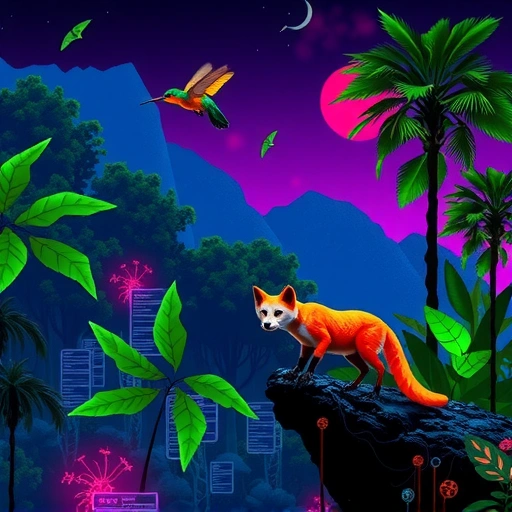
What is Midjourney Style Reference (`–sref`)?
The Style Reference feature lets you give Midjourney an image as a guide for style. You show it a picture you like, and it tries to make your new images look similar in terms of color, lighting, and overall aesthetic. This means you can create many different subjects or scenes, but they will all share a unified artistic style.
Want to generate a series of images with the same look without repeating prompts manually? Consider exploring tools like the
How to Use Style Reference
Using this feature is simple:
First, get the image you want to use as a style reference. You need its URL. The easiest way is to upload the image to Discord using the “+” button next to the prompt box. Once uploaded, click on the image, then open it in a browser, and copy the URL.
First, get the image you want to use as a style reference. You need its URL. The easiest way is to upload the image to Discord using the “+” button next to the prompt box. Once uploaded, click on the image, then open it in a browser, and copy the URL.
In the Midjourney prompt box, start with your subject or scene description (e.g., “a dog”).
In the Midjourney prompt box, start with your subject or scene description (e.g., “a dog”).
Add the new parameter: [–sref]
Add the new parameter: [–sref]
Make sure there’s a space after [–sref].
Make sure there’s a space after [–sref].
Paste or drag your reference image URL right after the space.
Paste or drag your reference image URL right after the space.
Your prompt will look something like this: [P]a cat –sref [Your Image URL][/P]
When you hit enter, Midjourney will create images of a cat that try to match the style of your reference picture.
Understanding Style Weight (`–sw`)
You can control how much Midjourney pays attention to the style reference image using the Style Weight parameter ([–sw]).
Add [–sw] followed by a number to your prompt.
Add [–sw] followed by a number to your prompt.
The number can be anywhere from 0 to 1000.
The number can be anywhere from 0 to 1000.
The default value is 100. If you don’t specify [–sw], it uses 100 automatically.
The default value is 100. If you don’t specify [–sw], it uses 100 automatically.
A weight of 1000 will make Midjourney follow the style reference very closely.
A weight of 1000 will make Midjourney follow the style reference very closely.
A weight of 0 means the style reference will have no effect at all.
A weight of 0 means the style reference will have no effect at all.
The minimum weight where you start seeing the style reference have some effect is around 20.
The minimum weight where you start seeing the style reference have some effect is around 20.
Experimenting with [–sw] helps you find the right balance between your subject and the reference style.
Tips for Better Results
Add Context: Don’t just use the subject. Adding descriptive text about the *type* of image you want (like “anime screenshot,” “oil painting,” “photograph style”) can help Midjourney better apply the reference style to your subject.
Add Context: Don’t just use the subject. Adding descriptive text about the *type* of image you want (like “anime screenshot,” “oil painting,” “photograph style”) can help Midjourney better apply the reference style to your subject.
Stylize and Chaos: The `–stylize` parameter (like [–s 1000]) works well with [–sref]. Also, don’t be afraid to use the `–chaos` parameter ([–c]), even up to 50, with style references. While high chaos usually creates unpredictable results, with [–sref] it can often lead to interesting variations that still keep the core style.
Stylize and Chaos: The `–stylize` parameter (like [–s 1000]) works well with [–sref]. Also, don’t be afraid to use the `–chaos` parameter ([–c]), even up to 50, with style references. While high chaos usually creates unpredictable results, with [–sref] it can often lead to interesting variations that still keep the core style.
Managing many images and variations can quickly become time-consuming. Tools designed for organizing and automating Midjourney tasks, like the
Using Multiple Style References
Yes, you can use more than one style reference image at a time!
After [–sref], add the URL for the first image, then a space.
After [–sref], add the URL for the first image, then a space.
Add the URL for the second image, then a space (and so on for more images).
Add the URL for the second image, then a space (and so on for more images).
Prompt example: [P]a car –sref [Image URL 1] [Image URL 2][/P]
Prompt example: [P]a car –sref [Image URL 1] [Image URL 2][/P]
Midjourney will try to combine the styles from both images.
Weighting Multiple Style References
To give more importance to one style reference over another, use weights:
After each image URL, add [–] followed by a number (e.g., [Image URL]::2).
After each image URL, add [–] followed by a number (e.g., [Image URL]::2).
Prompt example: [P]a bike –sref [Image URL 1]::2 [Image URL 2]::1[/P]
Prompt example: [P]a bike –sref [Image URL 1]::2 [Image URL 2]::1[/P]
In this example, the first image’s style would have twice the influence of the second image’s style.
Conclusion
The Style Reference feature is a powerful addition to Midjourney, making it much easier to create image sets with a consistent look and feel. By using the [–sref] parameter, adjusting the [–sw] weight, adding descriptive text, and even combining multiple styles, you have more control over your creative output than ever before. Have fun experimenting with this new capability!
For those looking to maximize efficiency and handle large volumes of consistent style generations, check out the
Do This Locally with Logen
Skip the subscription. Generate images like these on your own GPU — private, unlimited, no cloud dependency.
Midjourney vs Logen
| Feature | Midjourney | Logen |
|---|---|---|
| Cost | $10-60/mo | Free |
| Privacy | Cloud (images stored) | 100% local |
| Generations | Limited by plan | Unlimited |
| Internet Required | Always | No |
| Custom Models | No | Yes (any ComfyUI model) |
| GPU Required | No (cloud) | Yes (local) |
| Ease of Use | Discord bot | Desktop app |