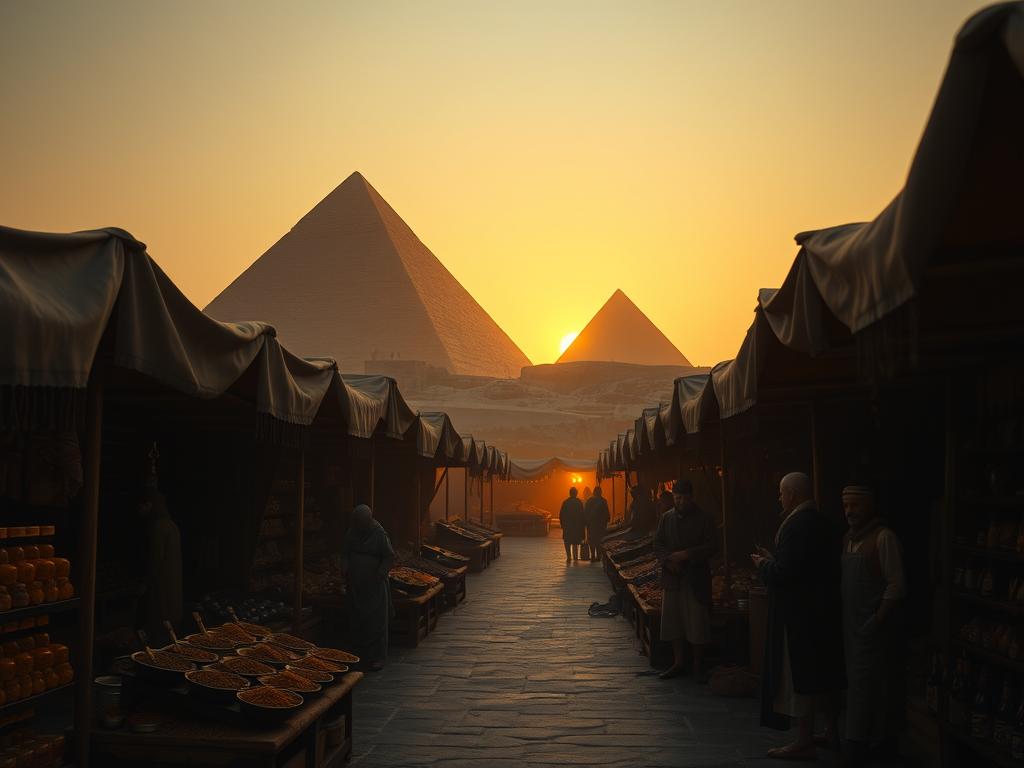
Start Smart with Clear Instructions
Think of your prompt as a set of directions. The more specific you are, the better Midjourney can understand your goal. Instead of saying “a dog,” try “a fluffy golden retriever playing in a park.” Add details about the setting, lighting, and style you want.
Define Your Subject Clearly
Be precise about the main focus of your image. Specify the type of subject, its action, and any important characteristics.
Wrong: Cat
Wrong: Cat
Better: A sleek black cat stretching in a sunbeam
Better: A sleek black cat stretching in a sunbeam
Wrong: A car
Wrong: A car
Better: A classic red sports car parked on a rainy city street, glowing streetlights
Better: A classic red sports car parked on a rainy city street, glowing streetlights
Set the Scene
Describe the environment. Is it indoors or outdoors? What time of day is it? What’s the weather like? Location details significantly impact the mood and context of the image. For example, “mountain landscape at sunset” creates a much different image than “mountain landscape on a cloudy day.”
Control the Style and Look
Midjourney can emulate various artistic styles. You can ask for images that look like paintings, photographs, or even specific artistic techniques. Knowing the right terms can drastically change the output.
Use Artistic Styles
Mention artists, art movements, or specific mediums.
“in the style of Van Gogh”
“in the style of Van Gogh”
“Impressionist painting”
“Impressionist painting”
“watercolor illustration”
“watercolor illustration”
“cinematic photo”
“cinematic photo”
“digital art”
“digital art”
Specify Lighting and Atmosphere
Lighting is crucial for setting the mood. Use descriptive terms.
“golden hour light”
“golden hour light”
“dramatic studio lighting”
“dramatic studio lighting”
“soft natural light”
“soft natural light”
“foggy atmosphere”
“foggy atmosphere”
“neon glow”
“neon glow”
To speed up your workflow and experiment with styles more efficiently, consider using a tool like the
Refine with Parameters
Midjourney uses parameters added at the end of your prompt to control specific aspects like aspect ratio, chaos, and stylization. These are powerful tools for fine-tuning your results.
`–ar W:H`: Sets the aspect ratio (e.g., `–ar 16:9` for a widescreen image).
`–ar W:H`: Sets the aspect ratio (e.g., `–ar 16:9` for a widescreen image).
`–chaos VALUE`: Controls how much the results vary (0-100). Lower values give similar results, higher values increase variation.
`–chaos VALUE`: Controls how much the results vary (0-100). Lower values give similar results, higher values increase variation.
`–stylize VALUE` (or `–s`): Controls how much of Midjourney’s default aesthetic is applied (0-1000, or higher in newer versions based on model default). Higher values result in more stylized images.
`–stylize VALUE` (or `–s`): Controls how much of Midjourney’s default aesthetic is applied (0-1000, or higher in newer versions based on model default). Higher values result in more stylized images.
`–v VERSION`: Specifies the Midjourney model version (e.g., `–v 5.2`, `–v 6.0`).
`–v VERSION`: Specifies the Midjourney model version (e.g., `–v 5.2`, `–v 6.0`).
`–niji 5`: Activates the Niji model, specifically trained for anime illustration styles.
`–niji 5`: Activates the Niji model, specifically trained for anime illustration styles.
Combining clear descriptive language with these technical parameters allows for much greater control over the final output. Experiment with different combinations to see how they affect your image.
Iterate and Learn
Generating AI art is often an iterative process. Your first attempt might not be perfect. Look at the results Midjourney gives you and think about what you want to change. Were the colors wrong? Was the subject too far away? Use what you learn to adjust your prompt and generate again. Adding or removing keywords, changing parameter values, or rephrasing descriptions are all part of the process.
Putting It All Together
Crafting great Midjourney prompts is a skill that improves with practice. Start simple, then gradually add detail about your subject, setting, style, and lighting. Don’t forget to use parameters for technical control. Review your results and refine your prompts based on what you see.
For those looking to take their Midjourney creations to the next level and run multiple prompts or explore different styles automatically, check out the
Do This Locally with Logen
Skip the subscription. Generate images like these on your own GPU — private, unlimited, no cloud dependency.
Midjourney vs Logen
| Feature | Midjourney | Logen |
|---|---|---|
| Cost | $10-60/mo | Free |
| Privacy | Cloud (images stored) | 100% local |
| Generations | Limited by plan | Unlimited |
| Internet Required | Always | No |
| Custom Models | No | Yes (any ComfyUI model) |
| GPU Required | No (cloud) | Yes (local) |
| Ease of Use | Discord bot | Desktop app |