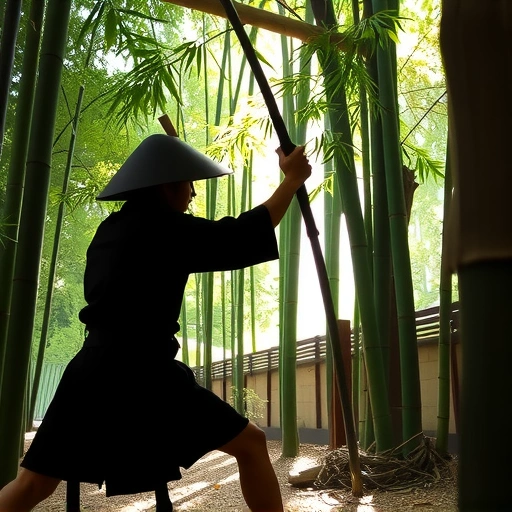
Harnessing the Power of Positive Prompts
One of the first steps to improve your AI art is using positive language. Instead of focusing on what you don’t want, highlight what you do want to see. For example, instead of prompting “a farm with no dogs,” try “a farm with cows, pigs, and various animals.” This helps Midjourney focus on the desired elements, leading to more accurate and satisfying results.
When Negativity Can Help
If positive prompts aren’t getting you the results you want, you can use negative constraints, but in a smart way. Add “no negative words” followed by the element you want to exclude. For example, adding “ddno dogs” to your prompt will reduce the chance of dogs appearing in your image. Experiment to see if this approach works for your needs.
Prioritize Key Words for Impact
Midjourney prioritizes the words at the beginning of your prompt. Place the most important elements first to ensure they get the most attention. Instead of “a nice farm with a massive evil bull,” try “a massive evil bull on a nice farm” to emphasize the bull. Think about what is most important for your image and put it at the front. If you want a minimalist logo, put that first. For example:
- Instead of “a massive evil bull on a nice farm, minimalist logo”, try
- “a minimalist logo of a massive evil bull on a nice farm”
Defining Color and Lighting for Desired Effects
Take control of your image’s look by defining color and lighting. Add color palettes like “pastel colors,” “neon colors,” or specific colors like “blue and green.” For lighting, use terms such as “low contrast,” “high contrast,” “dark low lighting,” “very sunny lighting,” or “golden hour lighting.” Experiment with these options to achieve the exact atmosphere you want.
Word Weight and Multi-Prompts: Fine-Tuning Your Vision
Midjourney allows you to assign weight to different words in your prompt using double colons and a number. This helps you emphasize specific elements. For example, “bull::3, farm::1” will give the bull more importance than the farm. You can also use multi-prompts to separate concepts. For example, “outside hot :: dog” will generate an image of a dog, not a hot dog stand.
Expand Your Visual Vocabulary
Enhance your ability to describe what you want by learning about art and photography. Understanding these fields will give you the vocabulary to communicate your vision effectively to Midjourney. Consider taking some time to look at various forms of art, so you can better communicate with the AI.
Short and Sweet: The Art of Concise Prompts
While it might be tempting to add as much detail as possible, shorter prompts can be more effective. Focus on the most important aspects of your image. For example, instead of “create an artwork of a small monkey in the stall of a modern video game built on Unreal Engine,” try “Unreal Engine 3D render of a monkey, forest, sunny sky, high contrast, earthy tones.” To shorten prompts, you can also use Discord’s `/shorten` command to remove distracting words.
Leveraging Styles for Impact
Define distinct styles to quickly transform your images. Use common art styles like “watercolor painting” or “ink dripping drawing.” For photos, try “DSLR photo” or “Sci-Fi Blockbuster movie screen cap.” You can also explore specific materials, ice sculptures or any style that comes to mind.
The Power of Artistic Influence
Incorporate artists’ names to mimic their unique styles. Try names like H.R. Giger, Picasso, or Salvador Dalí. You can also combine styles, such as “the combined styles of H.R. Giger and Leonardo da Vinci,” for a unique result. Experiment with the many great artists and their particular styles.
Inspiration from Others: Learning from Existing Prompts
Get inspiration by looking at other people’s prompts. Explore Midjourney’s explore page or other social media platforms to see how others are wording their prompts. This can give you new ideas and phrases to use in your own creations.
Deconstructing Prompts with Permutations
Take an existing prompt and break it down into shorter phrases using permutations. By adding a curly bracket at the start and end of phrases separated by commas, Midjourney will switch out the words, giving you a series of images with different styles. This helps you see the impact of each phrase and identify what works best for you.
Framing and Angle: Controlling Perspective
Describe the angle or framing of your image to control the perspective. Use terms like “high angle,” “low angle,” “landscape shot,” “closeup shot,” or “side angle” to achieve the desired viewpoint.
Reroll and Remix: Iterating to Perfection
Don’t settle for the first image. Always consider rerolling and remixing your image to fine-tune it. Use the rerun button on the website or the roll button in Discord. Turn on remix mode in Discord settings to alter the prompt each time you reroll.
Describing Mood: Setting the Atmosphere
Describe a certain mood in your prompt to evoke a specific feeling. Experiment with terms like “depressing mood,” “excited,” “gloomy,” “quiet,” “loud,” “powerful energy,” “serene stillness,” or “vibrant party energy” to see how they transform your image.
Prompt Formulas: Streamlining Your Process
Use solid prompt formulas to speed up your workflow and achieve better results. A simple formula is “[art style] of a [subject] in a [locational scene], [mood].” For example, “3D render of a gray star alien in a spaceship, gloomy and spooky.” By filling in the blanks, you can quickly generate a variety of images.
Final Thoughts
By implementing these prompt engineering tips, you can unlock the full potential of Midjourney and create truly exceptional AI art. Experiment with different techniques, find what works best for you, and let your creativity soar. Happy creating!
“`
Do This Locally with Logen
Skip the subscription. Generate images like these on your own GPU — private, unlimited, no cloud dependency.
Midjourney vs Logen
| Feature | Midjourney | Logen |
|---|---|---|
| Cost | $10-60/mo | Free & Pro plans |
| Privacy | Cloud (images stored) | 100% local |
| Generations | Limited by plan | Unlimited |
| Internet Required | Always | No |
| Custom Models | No | Yes (any ComfyUI model) |
| GPU Required | No (cloud) | Yes (local) |
| Ease of Use | Discord bot | Desktop app |