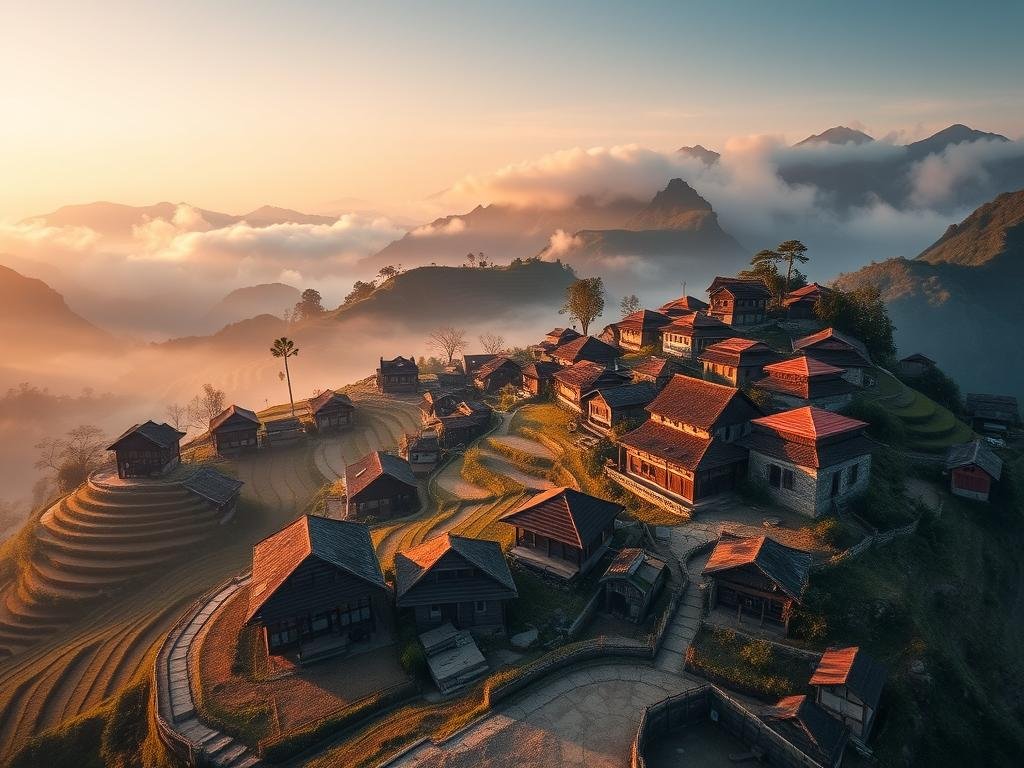
Understanding the Basics of Midjourney Prompts
A prompt tells Midjourney what picture to make. You start with a main idea, then add details and instructions called parameters. Think of it like telling an artist what you want, but you have to be very clear.
Subject: What is the main focus? (e.g., a cat, a landscape, a person)
Subject: What is the main focus? (e.g., a cat, a landscape, a person)
Style: What feeling or look do you want? (e.g., painting, photograph, cartoon, futuristic)
Style: What feeling or look do you want? (e.g., painting, photograph, cartoon, futuristic)
Details: Add specifics like colors, lighting, time of day, emotions.
Details: Add specifics like colors, lighting, time of day, emotions.
Parameters: These are special commands that start with `–`. They control things like the shape of the image or the style version.
Parameters: These are special commands that start with `–`. They control things like the shape of the image or the style version.
Writing Prompts That Get Results
Being specific helps Midjourney understand your vision. Instead of saying “a tree,” try “a lone oak tree on a hill at sunset.” Add descriptive words like “vibrant,” “soft,” “dramatic,” or “peaceful.”
Think about the medium you are asking for. Saying “oil painting” or “digital art” will change the look a lot. You can also mention specific artists or art movements if you want a particular style.
Use Parameters Wisely
Parameters are powerful tools. Some common ones include:
`–ar`: Sets the aspect ratio (width:height), like `–ar 16:9` for wide screens.
`–ar`: Sets the aspect ratio (width:height), like `–ar 16:9` for wide screens.
`–v`: Chooses the Midjourney version you want to use, each version has a different look.
`–v`: Chooses the Midjourney version you want to use, each version has a different look.
`–style`: Makes your images look more consistent.
`–style`: Makes your images look more consistent.
`–chaos`: Controls how varied the first set of images is. Higher numbers create more surprising results.
`–chaos`: Controls how varied the first set of images is. Higher numbers create more surprising results.
`–no`: Tells Midjourney what not to include in the image, like `–no trees`.
`–no`: Tells Midjourney what not to include in the image, like `–no trees`.
Trying different parameters helps you fine-tune your results. Experimenting is part of the fun!
Adding More Control and Detail
You can even start with an image. By adding an image URL to your prompt, you give Midjourney a visual starting point. This is great for getting a specific style or composition.
Remember that shorter, focused prompts can sometimes work better than very long ones that try to do too much. Start simple and add details as you go.
Managing many prompts, variations, and results can take time. Tools exist to help automate parts of this creative process. If you want to streamline your Midjourney workflow, consider exploring the
Putting It All Together
Good Midjourney prompting is about combining a clear idea with specific details and helpful parameters. Don’t be afraid to try different words and settings. Each prompt is a chance to create something new.
Practice is key. The more you experiment, the better you’ll get at writing prompts that bring your ideas to life.
For users creating many images or running large projects, managing everything manually can be a challenge. The
Conclusion
Creating AI art with Midjourney is a creative process. By focusing on clear subjects, adding descriptive style cues, and using parameters, you can greatly improve your results. Keep experimenting and have fun making incredible images.
Ready to take your Midjourney creations to the next level and simplify your workflow? Discover how the
Do This Locally with Logen
Skip the subscription. Generate images like these on your own GPU — private, unlimited, no cloud dependency.
Midjourney vs Logen
| Feature | Midjourney | Logen |
|---|---|---|
| Cost | $10-60/mo | Free |
| Privacy | Cloud (images stored) | 100% local |
| Generations | Limited by plan | Unlimited |
| Internet Required | Always | No |
| Custom Models | No | Yes (any ComfyUI model) |
| GPU Required | No (cloud) | Yes (local) |
| Ease of Use | Discord bot | Desktop app |