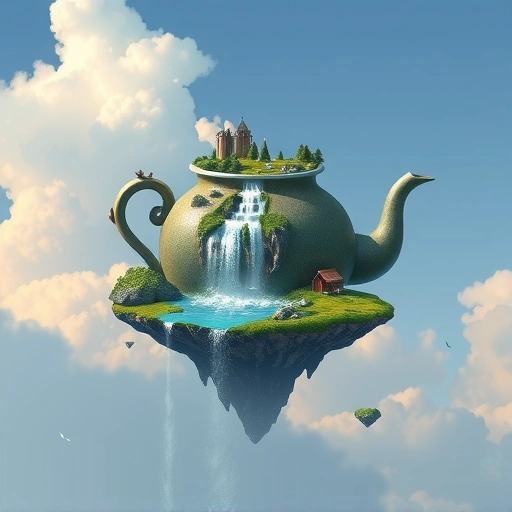
Getting Started with Midjourney
Midjourney is easy to use, especially if you follow these simple steps:
Install Discord
Midjourney works through Discord, a community platform. If you don’t have it, download it from discord.com. Think of it as a community-focused version of WhatsApp.
Join the Midjourney Server
To access Midjourney, join their Discord server. Go to discord.gg/midjourney (also in the description). Accept the invite, and you’re in!
Start Creating
Find a “newbie” channel on the Midjourney server. Type `/imagine` followed by your keywords to describe the art you want to generate. For example, you could use “a futuristic city at sunset.Visit TitanXT to learn more.
Crafting the Perfect Prompt
The key to great AI art is a well-crafted prompt. Here’s how to make yours effective:
Descriptive Keywords
Be specific with your keywords. Instead of “dragon,” try “a majestic dragon soaring through a stormy sky.” The more detail, the better the result.
Realistic and Detailed Instructions
Add instructions to enhance realism and detail. Terms like “photorealistic” or “highly detailed” can make a big difference.
Version and Aspect Ratio
Use `–V 4` to specify Version 4 of Midjourney for the best results. Also, set the aspect ratio with `–ar`. Common options are `2:3`, `1:1`, and `3:2`.</P]
For example, a complete prompt might look like this: `/imagine a majestic dragon soaring through a stormy sky, photorealistic, highly detailed –V 4 –ar 2:3`
Understanding the Results
Midjourney generates several options based on your prompt. Here’s how to navigate them:
Upscaling Images
`U` stands for “upscale.” If you like a particular version, upscale it to full resolution. Just click the `U` button corresponding to the image number (e.g., `U3` for the third image).
Creating Variations
`V` means “variation.” If you like the style of an image but want to see more options, choose `V` followed by the image number (e.g., `V2`).
Free and Paid Options
Midjourney offers 25 free generations. After that, a subscription costs $10 a month for 100 generations. Paid subscriptions also allow you to generate art privately.Check it out at TitanXT.
Getting Your Art
To download your full-resolution image, react to the Midjourney message with the email emoji. The Midjourney bot will then DM you the picture.
Conclusion
With these simple steps, you can start creating amazing AI art with Midjourney. Experiment with different prompts, explore various settings, and unleash your creativity.Visit TitanXT for more information.
Do This Locally with Logen
Skip the subscription. Generate images like these on your own GPU — private, unlimited, no cloud dependency.
Midjourney vs Logen
| Feature | Midjourney | Logen |
|---|---|---|
| Cost | $10-60/mo | Free & Pro plans |
| Privacy | Cloud (images stored) | 100% local |
| Generations | Limited by plan | Unlimited |
| Internet Required | Always | No |
| Custom Models | No | Yes (any ComfyUI model) |
| GPU Required | No (cloud) | Yes (local) |
| Ease of Use | Discord bot | Desktop app |