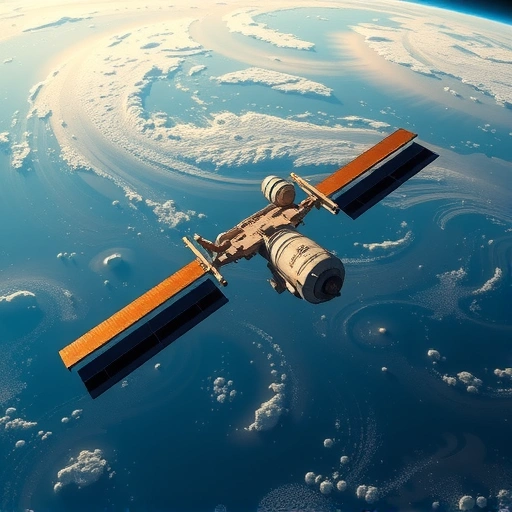
Discovering Blue Willow: Your Free Midjourney Alternative
Blue Willow is a free Discord server that lets you create AI images, similar to Midjourney. You can find the link to join this group in the description. It’s a great place to start experimenting with AI art generation without any upfront investment. To get started with Blue Willow, simply join the Discord server using the link provided. Once inside, you can start using the `/imagine` command in one of the designated channels to generate images from your prompts.
Finding Inspiration with Playground AI
Playground AI is a platform where users share their AI-generated images and the prompts they used to create them. This makes it an excellent resource for inspiration and for learning how to write effective prompts. Here’s how you can use Playground AI to enhance your Blue Willow experience:</P]
- Browse Playground AI for images that inspire you. Look for styles, subjects, or compositions that you’d like to recreate or adapt.
- Once you find an image you like, copy the prompt used to generate it. Playground AI makes it easy to access and copy prompts directly.
- Paste the prompt into Blue Willow and modify it to fit your vision. Experiment with different keywords, styles, and details to create something unique.
Crafting Your AI Images with Blue Willow
Now that you have your prompt, let’s bring your vision to life using Blue Willow. Here’s a step-by-step guide:</P]
- Join a Channel: Once you’re in the Blue Willow Discord server, select one of the available channels to post your prompt. These channels are usually named to indicate that they are for image generation.
- Use the /imagine Command: Type `/imagine` followed by your prompt in the chat. For example, `/imagine Iron Man baby with a big bumper on the forehead and a small heading or Square hybrid face fantasy dream like scream`
- Wait for Generation: Blue Willow will process your prompt and generate several image options. This may take a few moments, depending on the server’s load.
Refining Your Results
After Blue Willow generates your images, you have several options for refining the results:</P]
- Variations: If you like the general direction of an image but want to see more variations, use the “V” buttons (V1, V2, V3, V4) below the image. This will generate new versions based on the selected image.
- Upscaling: If you want a higher-resolution version of an image, use the “U” buttons (U1, U2, U3, U4). This will upscale the selected image, providing more detail.
Tips for Better AI Image Generation
Here are some tips to help you get the best results from Blue Willow:</P]
- Be Specific: The more specific you are in your prompt, the better the AI can understand your vision. Include details about the subject, style, composition, and mood you want to create.</LI]
- Use Keywords: Experiment with different keywords to see how they affect the generated images. Try adding keywords related to art styles (e.g., “Impressionist,” “Photorealistic”), artists (e.g., “Van Gogh,” “Picasso”), or techniques (e.g., “Oil Painting,” “Digital Art”).</LI]
- Iterate and Refine: Don’t be afraid to iterate on your prompts and refine your results. If you’re not happy with the initial images, try tweaking your prompt and generating new versions. Keep experimenting until you achieve the desired outcome.</LI]
Conclusion
Do This Locally with Logen
Skip the subscription. Generate images like these on your own GPU — private, unlimited, no cloud dependency.
Midjourney vs Logen
| Feature | Midjourney | Logen |
|---|---|---|
| Cost | $10-60/mo | Free & Pro plans |
| Privacy | Cloud (images stored) | 100% local |
| Generations | Limited by plan | Unlimited |
| Internet Required | Always | No |
| Custom Models | No | Yes (any ComfyUI model) |
| GPU Required | No (cloud) | Yes (local) |
| Ease of Use | Discord bot | Desktop app |