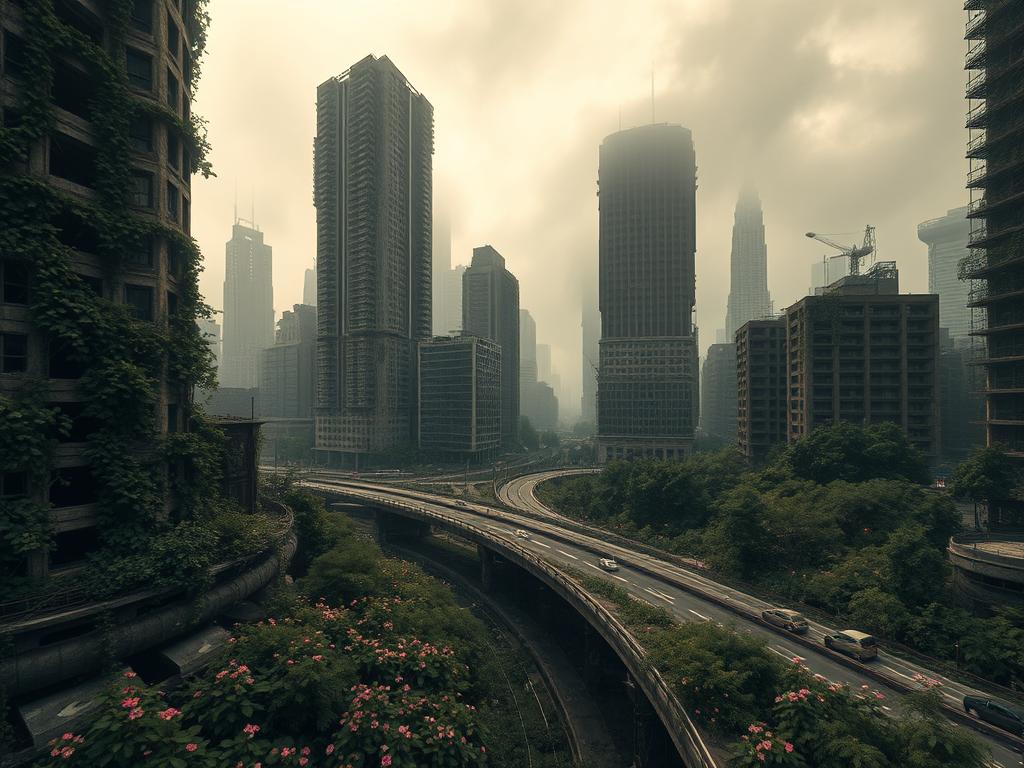
Moving Beyond Long Prompts
Many people start by writing very long, detailed prompts. Sometimes they even use AI to help create these dense descriptions. While this can give you a result, it’s not the most efficient way to work if you want specific styles or consistency.
Imagine you need an picture for a children’s book: a grizzly bear having a tea party in a forest. A long prompt might give you an image, but getting just the right feel and style can be tough.
Use Midjourney Personal Profiles (Mood Boards)
Midjourney lets you create a “personal profile” or mood board. Think of this as showing Midjourney examples of art styles you like. You can build this by ranking images you’ve already made. The more you rank, the better Midjourney understands your taste.
Once your profile has enough ranked images, you can activate it. When you use a prompt with your profile active, Midjourney tries to create images that fit the style of the images in your profile. This is a powerful way to quickly get images that match your personal aesthetic or a specific art style you are developing.
Using the bear tea party example, instead of just prompting, you activate a personal profile filled with images that have the look and feel you want for the children’s book. The results immediately show touches of the styles you’ve ranked, saving you a lot of trial and error.
Add Flavor with SREF Codes
SREF stands for “Style Reference.” An SREF code is a number associated with a specific image’s visual style. You can tell Midjourney to use the style of a particular image by adding `–sref ####` to your prompt, where `####` is the image’s code.
SREF codes bring in a different kind of stylistic control. If you want to explore variations of a base style (maybe from your mood board), you can add different SREF codes. Each SREF code will push the result towards a distinct look and feel.
For the bear tea party, you could start with your preferred style profile turned on, then add different SREF codes. You might get results like:
- An elegant, sophisticated look with the bear in fancy clothes.
- A style that looks like a comic book panel.
- A bright, simple cartoon look.
- An image that looks more like a physical sculpture.
Using multiple SREF codes at once lets you see several distinct aesthetic options from a single prompt run. This method helps you discover unique art styles you might not have thought of otherwise.
Combine Tools for Better Results
The real power comes from using these tools together. Start by setting up your personal profile to train Midjourney on your core style preferences. Then, use SREF codes on top of that to introduce specific artistic flavors or variations related to the effect you want.
This combination method gives you far more control than just writing longer prompts. It shifts your workflow from guessing what words might work to visually guiding the AI based on styles you like and want to explore.
Why This Approach Works Better
Using personal profiles and SREF codes helps you:
- Skip Trial and Error: Lock in a style from the start.
- Find Your Aesthetic: Discover and develop art styles you love.
- Explore Variations: Quickly sample different looks and feels.
- Work Faster: Get closer to your desired image with fewer attempts.
- Get Better Images: Finish with results that match your creative vision.
Instead of getting lost in prompt details, you guide Midjourney visually. This leads to a more creative and less frustrating process.
Conclusion
Generating great images in Midjourney isn’t just about your words. It’s about using the available tools effectively. By leveraging personal profiles to set a base style and SREF codes to explore variations, you gain much more control over your creative output.
Do This Locally with Logen
Skip the subscription. Generate images like these on your own GPU — private, unlimited, no cloud dependency.
Midjourney vs Logen
| Feature | Midjourney | Logen |
|---|---|---|
| Cost | $10-60/mo | Free & Pro plans |
| Privacy | Cloud (images stored) | 100% local |
| Generations | Limited by plan | Unlimited |
| Internet Required | Always | No |
| Custom Models | No | Yes (any ComfyUI model) |
| GPU Required | No (cloud) | Yes (local) |
| Ease of Use | Discord bot | Desktop app |