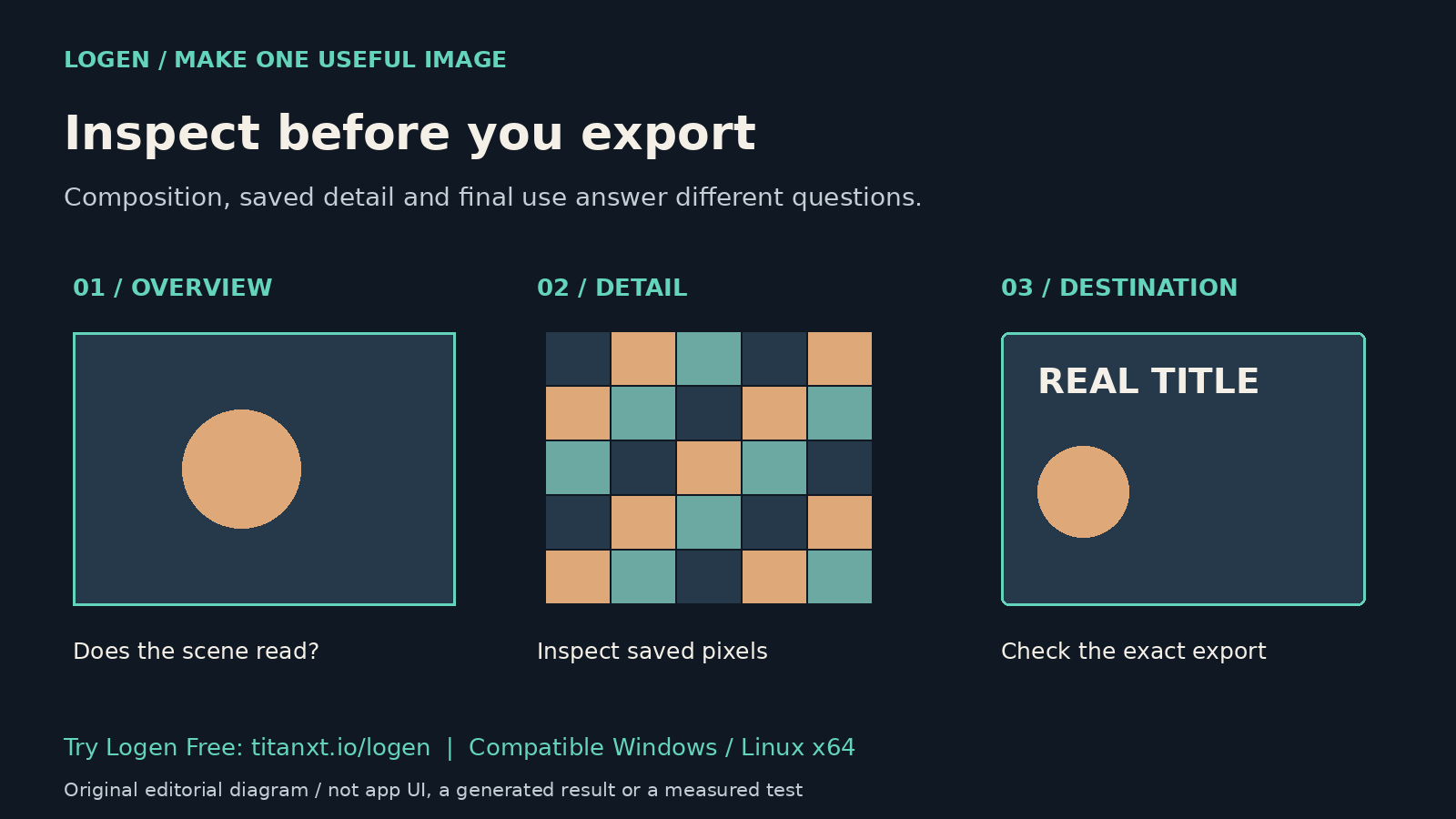
An image can look convincing as a small preview and fall apart when you open the original. The opposite happens too: a detail that bothers you at heavy zoom may be invisible in the final layout. Review the composition, the saved pixels and the destination separately before choosing an export.
This checklist uses documented Logen controls and ordinary image-review advice. It is not a new test of the app, an upscaling benchmark or proof that an output is ready for commercial use. The illustration is an original explanatory diagram rather than a screenshot or a claimed generated result.
First look at the whole image
Start with the picture fitted to the available space. Can you identify its main subject without reading the prompt? Does the lighting support the intended mood? Look for distractions near the focal point. Write down what the image needs to do before deciding whether more detail would help.
Fit-to-screen is useful for composition, but it resizes the display. It cannot establish what every saved pixel looks like. Keep the original file so later exports do not replace the only copy you can inspect.
Then inspect the actual detail
The official Logen guide documents a full-screen Lightbox with Fit to Screen and a 1:1 Full Resolution control, plus native 100% to 400% inspection. It also describes arrow-key navigation between images. These are documented capabilities, not evidence that this article exercised every version or image format.
Check subject edges, repeated structures and small objects that affect the intended use. Enlarging the display helps you see existing pixels; it does not establish newly generated detail. Avoid treating a smooth preview or a larger file dimension as a quality score.
Check the exported file, not only a web preview
A browser display can have a different size from its source image. MDN's documentation for naturalWidth distinguishes an image's intrinsic, density-corrected width in CSS pixels from layout constraints. It also notes that browsers may modify images. A screenshot of a web preview is therefore not a reliable substitute for inspecting the original file's dimensions and content.
For your deliverable, use an image editor or file-inspection tool to confirm the actual exported dimensions. Then open that exact export. Check that the crop did not remove a needed object and that compression did not introduce a visible problem. This is a review procedure, not a claim that Logen validates your publisher's requirements.
Finish at the size the audience will see
- Place the image in the intended layout, with the actual text if text is required.
- Inspect the smallest likely display size. A detailed subject may become unclear when reduced.
- Retain the original, the export and a short note describing any crop or other external edit.
A fault matters when it affects the job. A background used behind a large headline has different needs from an image whose small objects carry the story. If a critical feature is wrong, choose a different result or revise the concept rather than assuming enlargement will fix it.
Try the review loop in Logen Free
The product page lists the Project Gallery and 1:1 Lightbox in the ongoing Free tier. It also includes a FLUX.1-schnell starter workflow. Compatible Windows or Linux x64 hardware, initial setup and model downloads are still required; macOS is unsupported in this release. Pro application features and third-party model rights remain separate.
Quick answers
Is 400 percent zoom better than checking the final layout?
They answer different questions. Heavy zoom can reveal existing pixel defects, while the final layout shows whether the composition works for its audience. Use both when the job needs them. Do not reject an image only because a harmless detail looks rough at an enlargement nobody will see in the finished work.
Can I trust the dimensions of a browser preview?
Do not use the preview alone. Layout can constrain display size, and MDN notes density correction and possible browser interventions when describing intrinsic image width. Inspect the original or exact exported file with a suitable tool. A visible preview and a saved asset are related but not interchangeable evidence of dimensions or quality.
Does buying Pro clear an image for client use?
No. Logen Pro licenses application features. The model checkpoint has its own licence, and your inputs, intended use and other rights can matter too. Inspect those terms separately from visual quality. A clean export or a passed technical check does not certify copyright, trademark, privacy or publicity clearance for the proposed use.
Judge one image in its real destination
Try Logen Free on a compatible PC, save an original and inspect one intended export. For setup help, use the free local AI starter guide. Decide what actually needs fixing before generating a larger pile of alternatives.