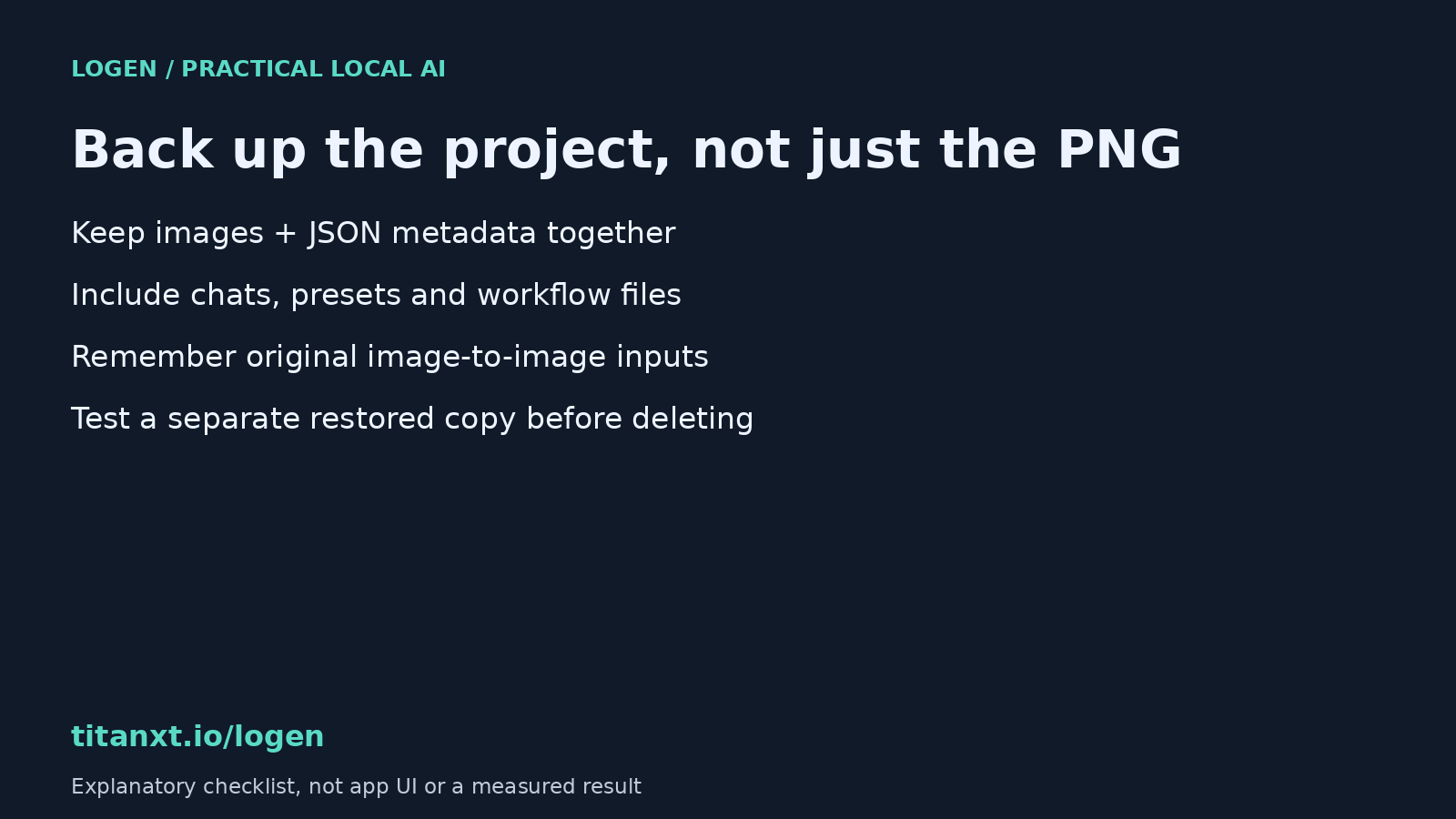
Back up the creative files you cannot replace before deleting a local AI runtime. In Logen, the documented Documents/Logen folder contains images, JSON metadata, chat threads, presets and imported workflows. Model checkpoints and managed engines live separately. Keeping the final PNG alone is not a complete project backup.
Separate your work from the tools that made it
A large model download can look like the most important file on your disk. Your prompt revisions and chosen outputs are often harder to replace. The model may still be available upstream; the exact project you built is yours to preserve.
The current Logen guide separates user assets under Documents/Logen from runtime engines under local application data. It also lists uploaded image inputs in the runtime uploads directory. If you use image-to-image, include the source images you need rather than assuming that one folder contains every dependency.
What to include in the copy
- Copy images and their matching JSON metadata together. Keep original filenames so a later restore does not separate an output from its sidecar.
- Include the chats, presets and imported workflows folders. Exporting a favourite PNG does not preserve the conversation or the reusable settings that led to it.
- Include original image-to-image inputs and any custom assets stored elsewhere. Write down where they belong.
- Record the app version, exact model filename and relevant workflow dependencies. This is a restoration note, not a promise of identical results after a software or GPU change.
The documented defaults are %USERPROFILE%\Documents\Logen on Windows and ~/Documents/Logen on Linux. Verify your configured output location before copying files; redirected Documents folders and custom paths can change where your actual work lives.
Make a consistent backup without overwriting anything
Finish or stop active jobs, then quit the app normally before copying. Put the backup on a separate drive or another destination you control. Give the copy a date and keep the previous backup until the new one has been checked. Moving files away from the only working folder is not the same as creating a second copy.
Microsoft documents File History as a Windows option for personal files backed up to an external drive or network location. If you use it, check that your actual project location is covered and that a recent backup completed. This article does not assume that File History is enabled or that its defaults cover a customised output folder.
Local generation does not decide your backup policy. Copying a private prompt folder into a cloud-synchronised destination changes who may store those files. Choose the destination deliberately, especially for client work, and keep credentials or licence keys out of public archives.
Test a copy before deleting the original
Restore into a new folder first, not over your working project. Open a sample PNG at full resolution and inspect its matching JSON file. Check that chat and preset files are present. For a larger archive, compare file counts and hashes with the source copy; do not rely only on the total folder size.
Opening the image verifies that the image survived. It does not prove the entire application can restore the project, or that a future model run will reproduce the same pixels. A full app restore needs its own isolated test. Keep the original until the level of restoration you need has actually passed.
Avoid an accidental runtime clean-up
The Logen guide places managed ComfyUI and model checkpoints under local application data: %LOCALAPPDATA%\Logen on Windows and ~/.local/share/Logen on Linux. Do not turn that distinction into blanket deletion advice. Uploaded inputs can live there too, and deleting a runtime can force substantial setup and downloads later.
If you are investigating an error, use the documented connection diagnostics and retain relevant logs before cleaning anything. A backup checklist is a preparation step, not an instruction to reset a working installation.
Quick answers about local AI backups
Is keeping my generated PNG enough to back up a project?
Not if you need the prompt history, saved settings or source inputs later. Keep the matching JSON metadata, chat files, presets and imported workflows as well as your chosen images. Check for image-to-image inputs stored outside the project folder, and record the app version and exact model filename separately.
Does local image generation mean my files are already backed up?
No. Saving locally means files exist on that storage device; it does not create a second recoverable copy. A failed disk or accidental deletion can still remove them. Choose a separate backup destination, confirm that your actual output path is included, and test a restored copy before relying on it.
Can I delete the model runtime after copying Documents/Logen?
Do not assume that one copy covers everything. The Logen guide lists uploaded image inputs under runtime storage, separate from the main user-assets folder. Check custom paths and dependencies, retain relevant logs, and verify your backup first. Deleting a runtime can also require large downloads and setup before generation works again.
Keep a practical setup record
The free local AI setup and model-fit guide helps you record the machine and workflow you are setting up. See the Logen user guide for the current directory layout. Logen supports Windows and Linux x64; macOS is not available in this release.