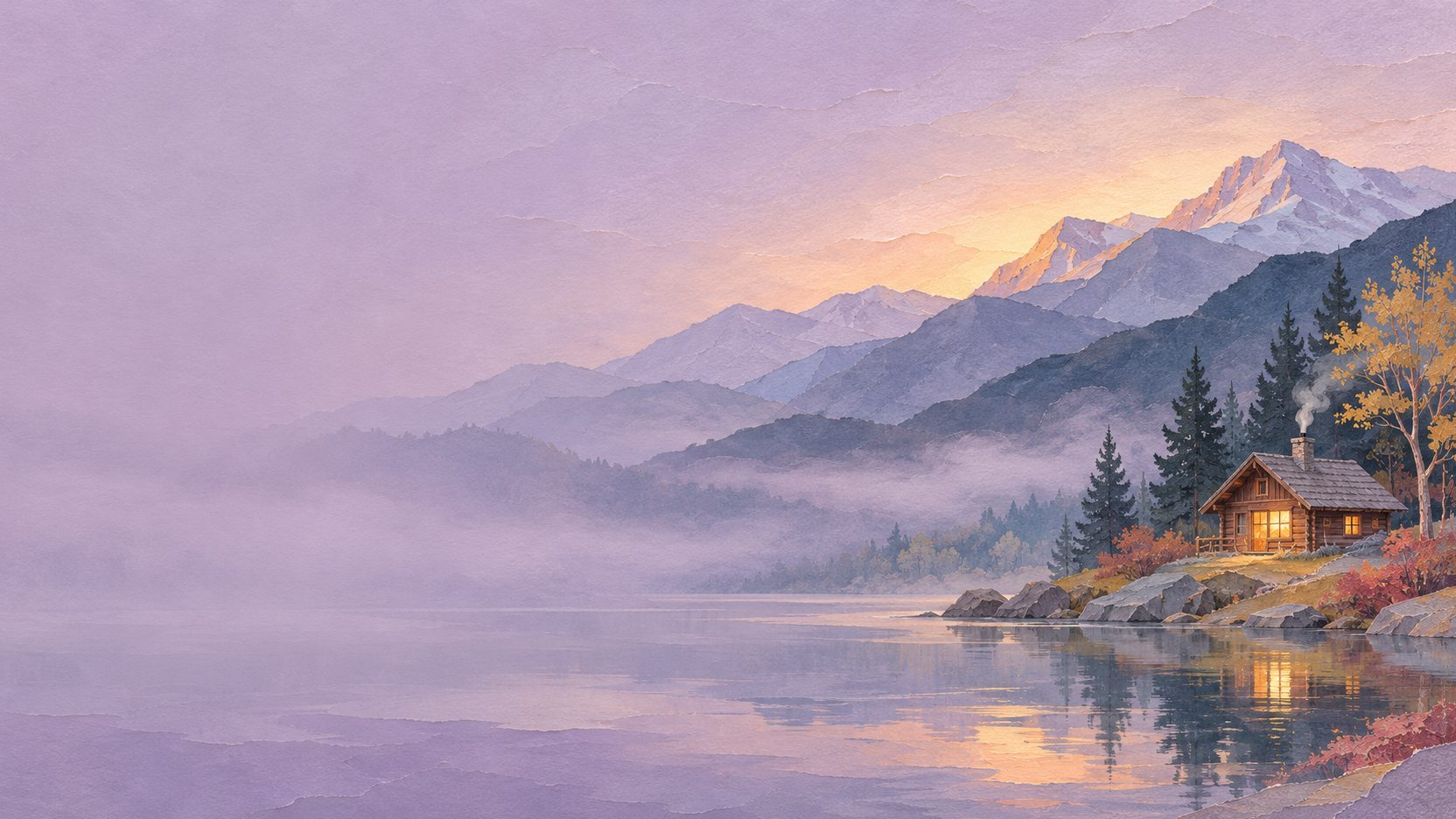
A useful desktop wallpaper leaves quiet space where your icons and windows need it. Start with the actual display shape, place the main subject away from your busiest desktop area, and test the saved image on that screen. A beautiful landscape can still be a poor wallpaper if every filename sits over bright branches or fine texture.
This is a proposed Logen workflow grounded in the current user guide, not a new on-device demonstration. The mountain-lake hero is an original OpenAI-generated editorial illustration. It is not a Logen output, a desktop screenshot or proof that one prompt will leave exactly the requested area empty.
Map the desktop before writing the prompt
Look at where you normally keep shortcuts, the taskbar or dock, and any always-visible widgets. Make a rough note of the occupied areas. If icons run down the left side, put the visual interest towards the right. If you prefer a clean desktop, you can use a more central composition without sacrificing readability.
Do not assume a widescreen preset fits every monitor. Check the resolution and aspect ratio of the display you intend to use. An ultrawide display and a conventional widescreen display need different compositions. Several monitors may also require separate images or a deliberately planned span rather than one picture stretched across unrelated rectangles.
Our composition and image-shape guide explains choosing a destination before generating. For wallpaper, the destination includes the operating-system furniture on top of the picture. Leave a little margin beyond the subject so the final fit mode does not crop away the feature you wanted to keep.
Write a brief for a background, not a poster
A proposed brief might describe a calm mountain lake at dawn, a small cabin near the far-right shoreline and broad soft mist on the left. The quiet area has a practical purpose: it reduces visual competition with icon labels. These are design instructions to try, not measured claims that a model obeys a precise layout grid.
Keep the subject count low. A single cabin is easier to position than a town full of lights and signs. Ask for smooth tonal areas where you expect text to sit. Avoid treating negative space as merely an empty corner; it should still belong to the same scene through colour, atmosphere and light.
Skip generated lettering, logos and fake desktop controls. A wallpaper does not need a clock painted into the sky when the operating system already has one. Those additions also create unnecessary failure points. Put any essential informational text in an actual desktop tool or editable layer rather than relying on generated characters.
Start with the local workflow your machine supports
The Logen user guide documents project chat, aspect-ratio choices, the Workflow Studio and a project Gallery. Logen 1.4.0 supports Windows and Linux x64; macOS is not available in this release. Complete the required runtime and model setup before planning an offline creative session.
Logen Free includes the FLUX.1-schnell starter workflow on compatible hardware. The upstream model card identifies that checkpoint separately from other FLUX variants. Use the settings supplied for your chosen workflow instead of assuming every model benefits from the same step count or guidance setting.
Use a modest supported generation size for the first composition check. A large final monitor does not mean the first experiment must render at that full resolution. Higher requested dimensions can increase memory demands. This guide provides no new GPU timing or universal maximum size; check the listed requirements and test the actual workflow on your own machine.
Keep a project for this display
Create a project with a name that identifies the intended screen and scene. Save the brief and a note about the quiet area with it. Logen documents project-linked chat threads and Gallery organisation; use those features to distinguish a wallpaper experiment from unrelated images rather than relying on a long sequence of generic filenames.
Generate one candidate and judge its layout before asking for many variations. If the cabin lands in the middle of the intended icon area, revise the composition. More detail in the trees will not solve that problem. If the horizon is too busy, simplify that part of the scene before spending effort on a final export.
Once the broad arrangement works, explore a different palette or lighting treatment in a separate version. Keep the earlier candidate. You may discover that a less dramatic version is more comfortable behind everyday work even though the vivid version wins when viewed alone. That is an ordinary design judgement, not a benchmark of image quality.
Test with real icons and actual fit settings
Save the candidate as a separate image. On Windows, Microsoft documents desktop background selection through Settings, Personalization and Background. Its background guide explains the available picture fit choices. Choose according to your screen rather than assuming the first displayed crop is the only option.
Fit modes can crop, leave borders or stretch an image. Compare the result with the saved original so you can tell whether a missing cabin was caused by generation or by display fitting. If you use Linux, follow the wallpaper controls for your desktop environment; this article does not claim that Windows menu names apply there.
View the desktop as you normally work, with icons visible and a window open. Check whether filenames remain readable, whether the taskbar covers an important detail and whether bright areas are distracting. The actual screen is the acceptance surface. A preview inside an image app cannot show every interaction with your desktop layout.
Choose crop or upscale deliberately
If the composition is good but the saved image is smaller than the destination, decide whether a careful crop and ordinary resizing are enough. Logen documents RealESRGAN upscaling as a Pro feature. Do not describe it as a Free entitlement or assume that every upscale setting is appropriate for every illustration.
Upscaling increases image dimensions; it does not prove that every added detail reflects the original scene correctly. Inspect the result at a useful zoom for halos, repeated texture and exaggerated edges. A soft atmospheric wallpaper may not benefit from the same sharpening treatment as a detailed architectural illustration.
Our export inspection guide separates overview, detail and destination checks. For wallpaper, perform all of them, then return to the real desktop. Keep the pre-upscale version until the final image has passed that screen-level check.
Keep permissions and storage simple
Use a fictional scene or reference material you are allowed to adapt. A personal wallpaper is not an excuse to upload confidential work imagery to another service. Local image generation keeps that computation on your machine, but your backup or sharing destination can still copy files elsewhere. Choose those destinations deliberately.
The model licence and Logen application licence answer different questions. FLUX.1-schnell uses Apache-2.0 terms, while other checkpoints have their own conditions. If you plan to sell or distribute the wallpaper, review the actual model terms and any source-image rights first. This article does not certify ownership or clear a particular scene for commercial distribution.
Try the small version first
Logen Free is one local desktop option if your Windows or Linux x64 PC meets the requirements. Local runs do not use per-image cloud credits, but they still consume electricity, disk space and hardware time. Pro features and model requirements should be checked separately rather than inferred from a free starter run.
A sensible first task is one wallpaper for one screen. Keep the scope small enough that you can inspect the image, set it as a background and decide whether it makes daily work more comfortable. That is a more useful outcome than collecting a folder of very large images you never actually use.
Quick answers about local AI wallpapers
Should I generate at my full monitor resolution immediately?
Not necessarily. First test the composition at a supported size that your workflow and hardware can handle. Match the intended aspect ratio and reserve space for icons. After selecting a useful layout, decide whether resizing or an appropriate upscale is needed, then inspect the final image on the actual display.
Why does the wallpaper look different after I set it as the background?
The desktop fit mode may crop, stretch or reposition the saved image. Compare the background settings with the original file before blaming the generator. On Windows, Microsoft documents the picture fit choices in Background settings. Linux controls depend on the desktop environment, so check the instructions for your actual setup.
Keep the setup notes beside the image
Use the free local AI starter guide for setup and model-fit planning. Record your display shape, chosen workflow and saved source with the wallpaper, so the next variation starts from a clear brief rather than a guess.