Build a Veo prompt around one readable shot: a subject doing one action in a defined setting, viewed from a chosen camera position. Describe camera movement separately from subject movement, then add concise audio direction. A short clip becomes harder to judge when the prompt asks for several scenes, conflicting camera moves and a long conversation.
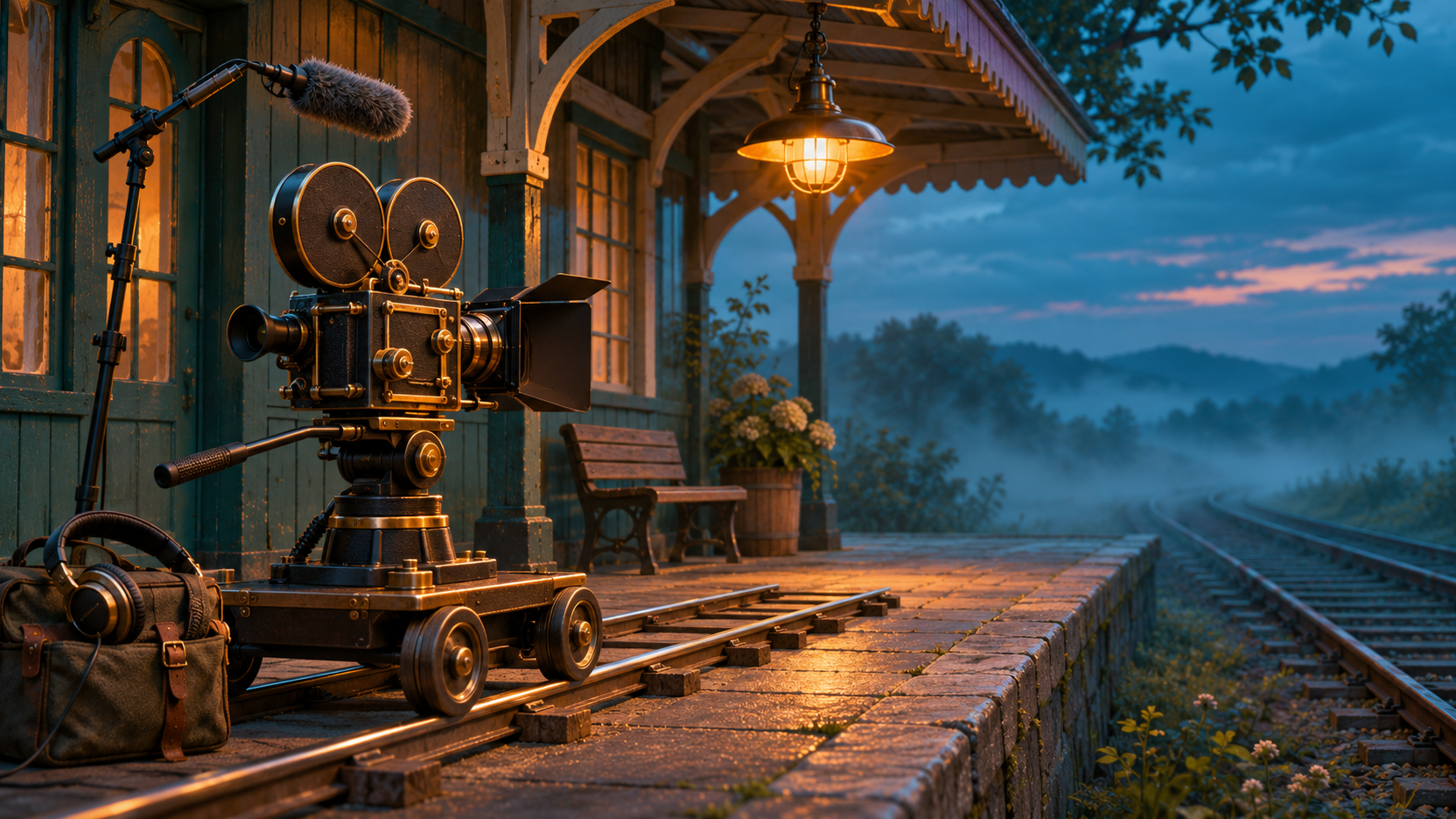
This is a documentation-based prompting guide, checked against Google sources on 15 November 2026. It does not report a paid cloud test, measured success rate or a comparison of generated videos. The railway camera hero is an original OpenAI-generated editorial illustration, not a Veo frame. The sample prompts are untested writing examples.
Check the model and access route first
The Gemini API video documentation describes Veo video generation, including model-specific capabilities and limits. The exact model identifier, available duration, resolution and supported input modes belong to that route. Do not assume an example from an API guide describes every control in a consumer application or another hosted service.
Google documentation currently includes Veo 3.1 material. Treat that as a documented model family rather than a promise that your account offers every feature. Check current access, region, terms and displayed cost before generating. This article does not submit a request, open an account or establish a free allowance for video production.
Write the model and route beside your shot brief. If you later change them, mark it as a new experiment. Otherwise a difference in motion or sound could be attributed to prompt wording when the underlying generation system changed too. Documentation can describe intended controls without proving how reliably your particular shot will render.
Separate the subject, action and setting
Start with a visible subject and a single action that can be understood quickly. For example: an adult station attendant closes a wooden ticket window on an empty platform at dusk. That gives the model an actor, an action and a location without adding a chase, a weather transformation or several scene changes.
Google provides a Veo prompt guide covering subjects, action, context, camera direction and sound. Use those as useful categories for planning, not as compulsory headings that must appear in every prompt. Plain sentences are easier to revise than a dense list of cinematic adjectives.
Pick a meaningful final moment. For the station example, the window is closed and the attendant rests a hand on the counter. That ending is easier to evaluate than a vague request for an emotional cinematic story. It also helps you decide whether the generated action completed rather than merely beginning near the end of the clip.
Camera position and camera movement are different
A medium shot says how tightly the subject is framed. An eye-level angle says where the viewer is positioned. A dolly movement says how the camera travels. These instructions can work together, but they answer different questions. Adding more camera terms does not necessarily produce more control.
Google distinguishes a pan, where the camera rotates horizontally from a fixed position, from a truck movement, where it travels sideways. It also distinguishes a dolly towards the subject from a zoom that changes magnification. Use the term that describes the visual change you actually want, then explain it in ordinary language if needed.
For the first station prompt, choose a fixed eye-level medium shot. After judging that version, a separate test could request a slow forward dolly. Do not ask for a locked camera and a sweeping orbit at the same time. Advanced camera language can also be unreliable; Google explicitly cautions that some angles and lenses are not officially supported.
Give the subject room to move
A closing window needs visible space for the movement. A person walking out of frame needs somewhere to go. In image-to-video, those constraints already exist in the source still. A prompt cannot guarantee a clean action if the required object is hidden or the starting composition leaves no room for it.
Our image-shape guide explains planning the destination before creating a still. For video, add the movement path to that plan. Keep a practical distinction between a wide-looking picture and a frame that has enough usable space for the intended action.
If a shot needs continuity with another clip, note the subject position, light direction and visible background landmarks. Those notes support later evaluation; they do not guarantee identical characters or locations across separate generations. An appealing isolated clip may still fail to cut together with the scene before it.
Write sound as its own instruction
Google recommends separate sentences for audio direction. Describe ambient sound, a relevant sound effect and dialogue only when they help the shot. For the platform, that could be distant rail noise and a quiet wooden latch. Avoid requesting silence and a loud soundtrack in the same breath.
Keep dialogue short and attribute it to one identifiable speaker. A proposed instruction might say that the station attendant says: Last train has gone. This is an untested example, not a claim of perfect lip sync or exact delivery. Long speeches and multiple speakers add more conditions to check within a short scene.
After generation, listen to the actual saved clip. Check the spoken words, speaker assignment, unwanted speech and whether the effect matches the visible action. Captions or a transcript cannot establish that a latch sound occurs at the right moment. If precise dialogue is essential, plan a separate authorised recording and editing route rather than assuming generation will meet it.
A compact proposed shot brief
Fixed eye-level medium shot of an adult station attendant at a small wooden ticket window on an empty railway platform at dusk. The attendant slowly pulls the shutter closed, then rests one hand on the counter. Warm light from a single lamp falls across the wood. The shot stays in the same place throughout.
Audio: quiet distant rail noise, a soft wooden latch as the shutter closes. The attendant says: Last train has gone. Keep the voice clear against the background ambience.
This example intentionally leaves out exact duration, output size and model identifier because those must match the selected access route. It is not a tested prompt recipe. Before using it, confirm the available settings and replace the scene with material you are allowed to generate. Do not use a real person or protected property without considering the relevant rights and rules.
Diagnose one failure at a time
- If the action is unclear, simplify the subject movement before adding more camera language.
- If the camera drifts, remove conflicting movement instructions and try a clearly fixed shot.
- If the dialogue is wrong, shorten it and use one speaker before increasing scene complexity.
- If the sound competes with speech, revise the audio instructions separately from the visual brief.
Keep the prompt, model identifier and actual output together. Record a specific verdict such as action incomplete or extra speaker, rather than simply bad result. A useful revision addresses that named defect. Changing the whole scene after every disappointment makes it difficult to learn what your prompt controls can and cannot influence.
Local stills can help, but they are not local Veo
For a wider view of image-based animation choices, see our earlier Midjourney and Veo comparison. It is dated context, not evidence that its prices or model details remain current. Check current official documentation for the route you select.
Logen can create still images locally on compatible Windows and Linux x64 hardware. Its Free starter uses FLUX.1-schnell. A suitable still may become an input to a separately supported image-to-video service, but Logen is not described here as a Veo video or audio engine. Uploading a local still to a cloud service changes where that input is processed.
Quick answers about Veo shot prompts
Should I describe camera movement and subject movement separately?
Yes. A walking subject and a moving camera are different instructions. State what the subject does, then specify whether the camera stays fixed, rotates or travels. Begin with one clear movement choice. Conflicting directions make the result harder to diagnose and do not establish reliable control over a short generated shot.
Does a detailed prompt guarantee exact dialogue and sound timing?
No. Documentation describes audio prompting, not a guarantee that every request will produce exact speech or synchronised effects. Keep dialogue concise, identify the speaker and inspect the saved clip with sound. If timing or wording is mandatory, allow for an independently authorised recording and editing process after generation.
Keep the still-image setup practical
Get the free local AI starter guide for still-image setup and model-fit context. Use a separate shot record for video access, costs, rights and acceptance checks. A sound local still workflow is useful preparation, not proof of a successful video.