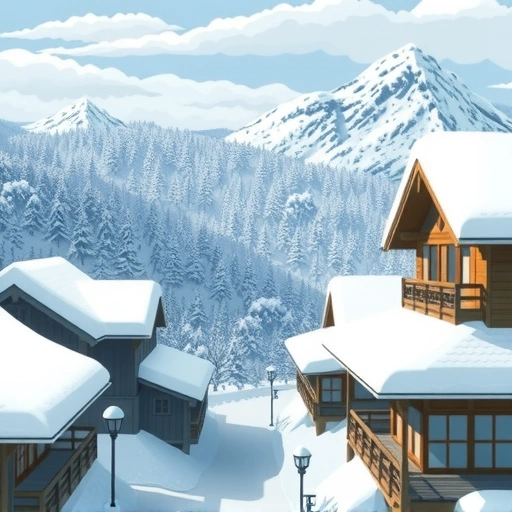
This guide will show you how batch rendering works. It’s a handy feature that can save you time when you’re exploring different visual ideas.
Understanding Batch Rendering in Midjourney
Batch rendering is a powerful tool that lets you send several linked prompts to Midjourney at once. Instead of waiting for one image to finish and then typing the next prompt, you can set up a batch command to generate multiple images from a template or a list of variations immediately.
How to Use Multi-Prompt Commands
The basic way to create a batch rendering command uses curly braces `{}` and commas ` , `. You put the options you want Midjourney to try inside the braces, separated by commas.
Here’s the simple structure:
/imagine prompt Your main prompt {option one, option two, option three}
When you type this command and hit enter, Midjourney will see the options inside the braces and create a separate image for each one, combined with “Your main prompt”.
This saves time and effort. Tools like the
Confirming Your Request
After you enter a command with curly braces, Midjourney will usually ask for confirmation. A message will pop up saying something like “Are you sure you want to imagine [number] prompts from the template…?” This lets you check that you set up the command correctly before using your fast hours.
If the number of prompts and the template look right, just click “Yes” to start generating the images.
Important Note: Mode Requirement
It’s important to know that this specific method using curly braces `{}` only works when you are in Midjourney’s Turbo or Fast mode. It does not work in Relax mode.
Examples of Batch Rendering
Let’s look at a few examples to see how this works in practice.
Basic Variations
You can use batch rendering to quickly see the same scene under different conditions.
/imagine prompt landscape during {sunset, sunrise, moonlight night}
This command will create three different images:
A landscape during sunset.
A landscape during sunset.
A landscape during sunrise.
A landscape during sunrise.
A landscape during a moonlight night.
A landscape during a moonlight night.
Combining Elements
You can also combine different elements or subjects with different conditions. You can even use multiple sets of curly braces.
/imagine prompt {forest, beach} during {Daytime, Nighttime}
This command will generate four images by combining each option from the first set of braces with each option from the second set:
A forest during Daytime.
A forest during Daytime.
A forest during Nighttime.
A forest during Nighttime.
A beach during Daytime.
A beach during Daytime.
A beach during Nighttime.
A beach during Nighttime.
This approach makes it easy to explore many different scenarios rapidly.
Conclusion
Batch rendering with multi-prompt commands is a great way to speed up your image generation process in Midjourney. It lets you explore many visual ideas from a single command, which is perfect for quickly testing variations or combinations.
Give this technique a try to make your Midjourney workflow more efficient. For even more help with managing your creative projects and output, explore the
Do This Locally with Logen
Skip the subscription. Generate images like these on your own GPU — private, unlimited, no cloud dependency.
Midjourney vs Logen
| Feature | Midjourney | Logen |
|---|---|---|
| Cost | $10-60/mo | Free |
| Privacy | Cloud (images stored) | 100% local |
| Generations | Limited by plan | Unlimited |
| Internet Required | Always | No |
| Custom Models | No | Yes (any ComfyUI model) |
| GPU Required | No (cloud) | Yes (local) |
| Ease of Use | Discord bot | Desktop app |