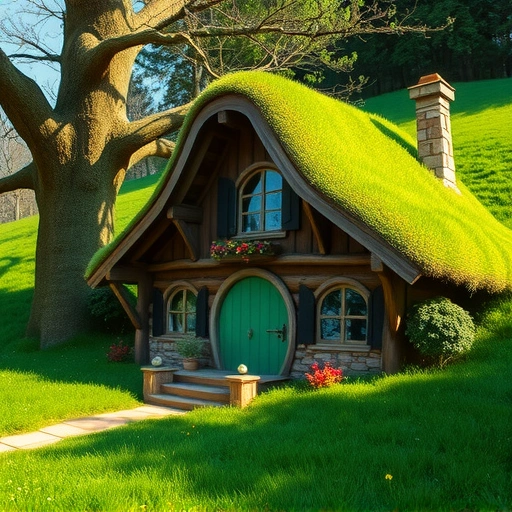
Crafting the Perfect Prompt
Tip 1: Focus on the Positive
Instead of saying what you *don’t* want, describe what you *do* want. For example, instead of “a farm with no dogs,” try “a farm with cows, pigs, and various animals.” This helps Midjourney focus on the elements you want to include.
Tip 2: When to Use Negative Prompts
If positive prompts aren’t working, use negative prompts. Add “d d n o” at the end of your prompt, followed by the element you want to exclude. For example, “a farm, d d n o dogs” will remove dogs from the image.
Tip 3: Prioritize Your Keywords
Put the most important words at the beginning of your prompt. Midjourney prioritizes the words it reads first. Instead of “a nice farm with a massive evil bull,” try “a massive evil bull on a nice farm” to emphasize the bull.
Tip 4: Define Color and Lighting
Add color and lighting details to your prompts for more control. Use specific colors like “blue and green color palette” or lighting conditions like “low contrast” or “Golden hour lighting.”
Ready to create stunning AI art? The
Advanced Prompting Techniques
Tip 5: Leverage Word Weight and Multi-Prompts
Use word weight to emphasize certain words. Add two colons after a word, followed by a number to score it. For instance, “evil::8 bull::4 farm” gives “evil” the highest priority. Also, use multi-prompts to separate distinct elements. For example, “outside hot:: dog” creates an image with “outside hot” as one element and “dog” as another.
Tip 6: Embrace Art and Photography Knowledge
The more you know about art and photography, the better you can describe your vision. Study art styles, photography techniques, and visual elements to communicate more effectively with Midjourney.
Tip 7: Keep Prompts Concise
Short, dense prompts are better. Focus only on the important elements to avoid distracting Midjourney. Use tools like Discord’s “/shorten” command to refine your prompts.
Want to simplify your Midjourney workflow? Check out the
Tip 9: Use Artist Names
Incorporate artist names to emulate their unique styles. Try “in the style of Picasso” or “in the style of Salvador Dali.” Combine artist names for unique results, such as “HR Giger and Leonardo da Vinci.”
Tip 10: Seek Inspiration From Others
Explore platforms like Midjourney’s explore page or social media to see other people’s prompts. Analyze their techniques and phrases to enhance your own prompts.
Tip 11: Split Prompts with Permutations
Break down existing prompts into shorter phrases using permutations. Use curly brackets and commas to switch out words and see the impact of each phrase. For example: “{antique Photography, in the 1900s, Dark Fantasy}.”
Tip 12: Control Angle and Framing
Describe the angle and framing of your image. Use terms like “high angle,” “low angle,” “closeup,” “landscape shot,” or “side angle” to control the perspective.
Tip 13: Reroll and Remix
Don’t settle for the first result. Use the reroll and remix functions to refine your images. In Discord, turn on remix mode (“/settings”) to alter prompts and generate new variations.
Tip 14: Set the Mood
Incorporate mood descriptions to influence the image’s feel. Try “depressing mood,” “excited,” “gloomy and spooky,” “quiet,” “loud,” “powerful energy,” “serene stillness,” or “vibrant party energy.”
Tip 15: Use Prompt Formulas
Use solid prompt formulas to speed up the process. One example is “art style of [subject] in [location], [mood].” For instance, “3D render of a gray star alien in a spaceship, gloomy and spooky.”
Elevate your AI art game with these prompt engineering tips. And for even greater efficiency, don’t forget to explore the
Final Thoughts
By applying these tips, you’ll be well on your way to creating incredible AI art with Midjourney. Experiment, stay curious, and let your creativity flow!
Do This Locally with Logen
Skip the subscription. Generate images like these on your own GPU — private, unlimited, no cloud dependency.
Midjourney vs Logen
| Feature | Midjourney | Logen |
|---|---|---|
| Cost | $10-60/mo | Free |
| Privacy | Cloud (images stored) | 100% local |
| Generations | Limited by plan | Unlimited |
| Internet Required | Always | No |
| Custom Models | No | Yes (any ComfyUI model) |
| GPU Required | No (cloud) | Yes (local) |
| Ease of Use | Discord bot | Desktop app |